
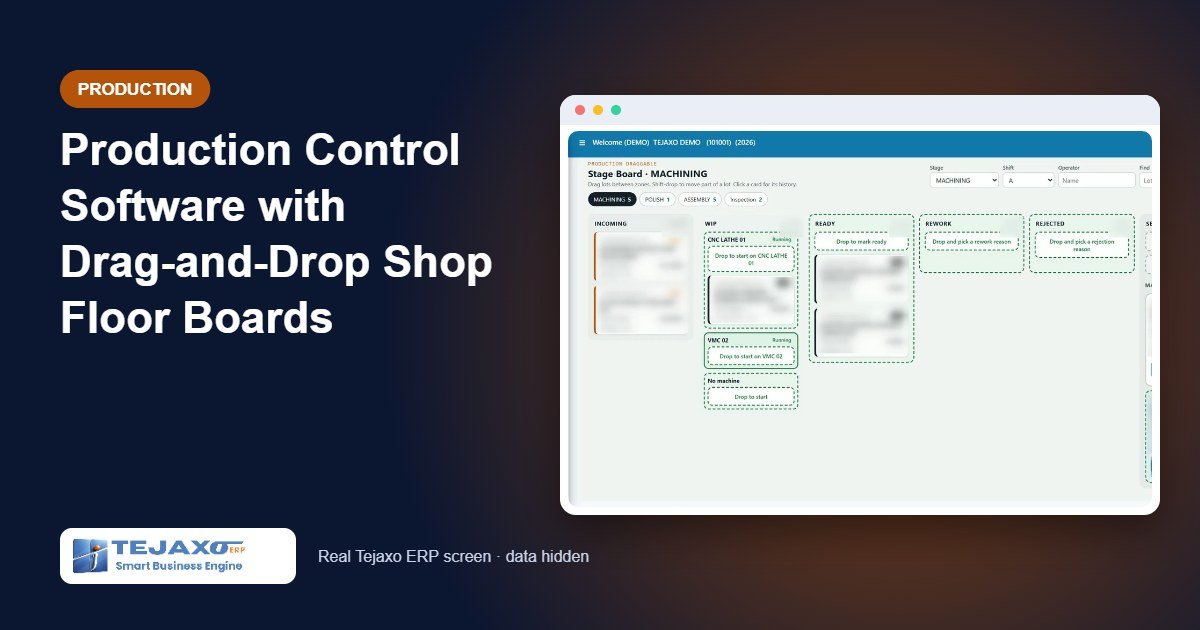
On most shop floors, the ERP learns what happened hours after it happened. A supervisor finishes a shift, then fills an issue form, a production entry and a stage transfer, line by line: department, job, stage, item, quantity, batch. The forms are tedious, so they are filled late or not at all, and the WIP report ends up describing a floor that no longer exists. Good production control software should record work as it moves, not as a clerical task afterwards.
Tejaxo ERP’s Production Draggable boards take a different approach. Work orders, pick lists, lots and machines are cards. Columns are states. Moving a card is the entry. This article explains the six boards, the rules that keep the data clean, and how a lot moves from sales order to finished-goods store.
The idea: one drag, one entry
Every drag on a board is checked, saved as one transaction and given its own entry number. It can be printed, and it can be undone. Every report is built from these entries, so there is one record of what happened and no separate form to keep in step.
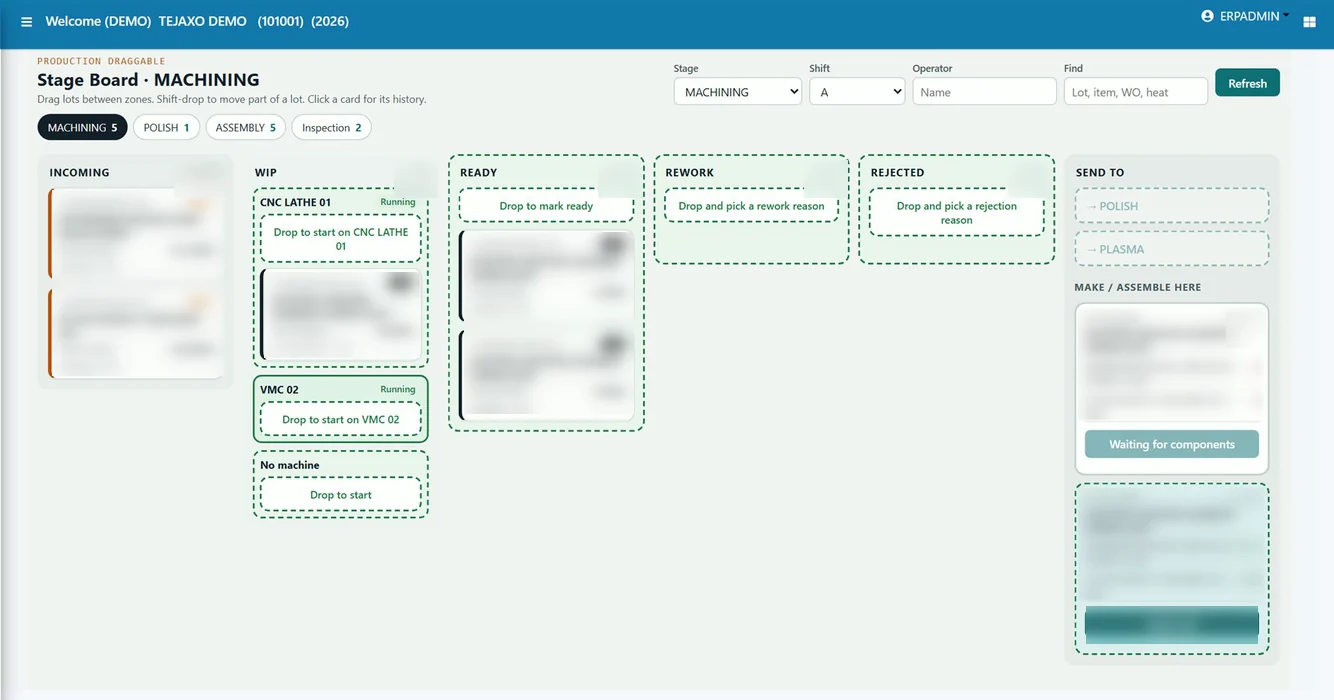
When you pick up a card, the places where it may go glow green with a dashed edge, and places where it may not go stay grey. The target column tells you what the drop will do. After the drop, a message shows the entry number with an Undo button for 12 seconds. Holding Shift while dropping moves only part of a lot, and clicking any card opens its history. The boards refresh every 30 seconds.
The six boards
All six boards sit under Production Control in the menu. A user needs view and save rights on each board.
Route Studio: the stages of each item
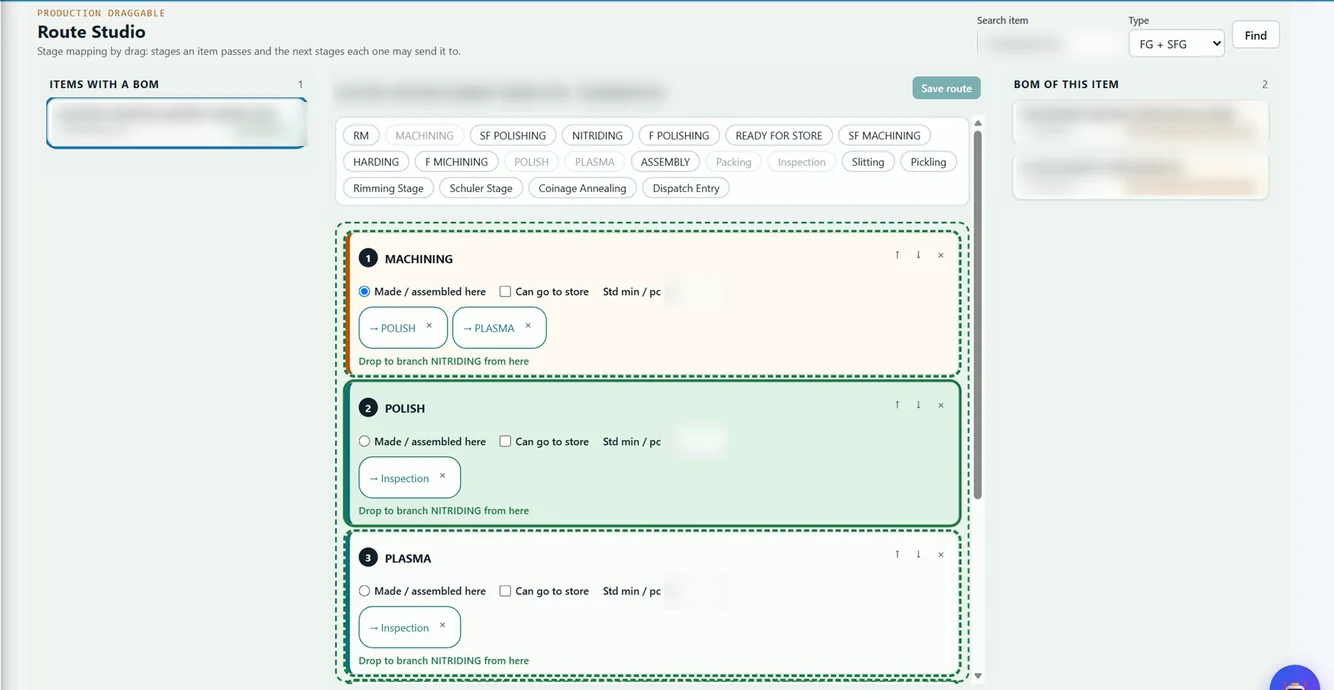
Before anything moves, each item needs a route. In Route Studio you drag stage chips into a lane, mark the stage where the item is made or assembled, and tick “can go to store” on final stages. A chip dropped on a stage creates a branch; a stage dropped on another stage links or unlinks it as a next stage. The route is a filter, not a fixed sequence: a lot may go to any linked next stage. The right-hand panel checks the BOM and flags any made component that still needs a route.
Order Desk: sales orders become work orders
The Order Desk has five columns: open SO lines (items with a BOM and pending quantity), Planned WO, Released, On hold and Completed. Ctrl-click several SO lines of the same item and drag them onto Planned WO to create one work order; the quantity is the pending quantity and the due date is the earliest SO date. Dragging a planned WO onto Released explodes the BOM to all levels and sends the raw-material pick list to the Material Board. Hold needs a reason, and both hold and cancel ask for confirmation.
Material Board: issue raw material to the stage
Each released work order gets a pick-list card showing issued versus needed quantity, a progress bar and the stage each line goes to. Drag the card onto Issued to stage and every pending line is issued in one entry; the material lands in that stage’s Incoming column. For a part issue, open the card, enter the quantities and the heat or batch number. The heat number stays on the lot all the way to the finished goods.
Stage Board: the shop floor
Each stage has a board with Incoming, a WIP lane per machine, Ready, Rework / Rejected and a Send to area. Set the shift and operator once and they are stamped on every move. Dropping a lot on a machine lane starts it; dropping it on Ready asks for good and rejected quantity. Ready lots can be sent only to next stages linked in the route. A make / assemble tray lists the BOM lines for items made at that stage, shows in green or red whether enough material is present, and creates a new lot when you press Make. Two lots of the same item and work order can be merged after confirmation. On a final stage, Send to includes Main store; when the stored quantity reaches the work order quantity, the work order completes by itself.
Machines and Downtime
One tile per machine, grouped by stage: green when running with lots on it, orange when idle, red when down with the reason and minutes. To record downtime, drag a reason chip onto a running machine; press Back to running when it works again and the minutes are counted for you.
Control Tower: the floor at a glance
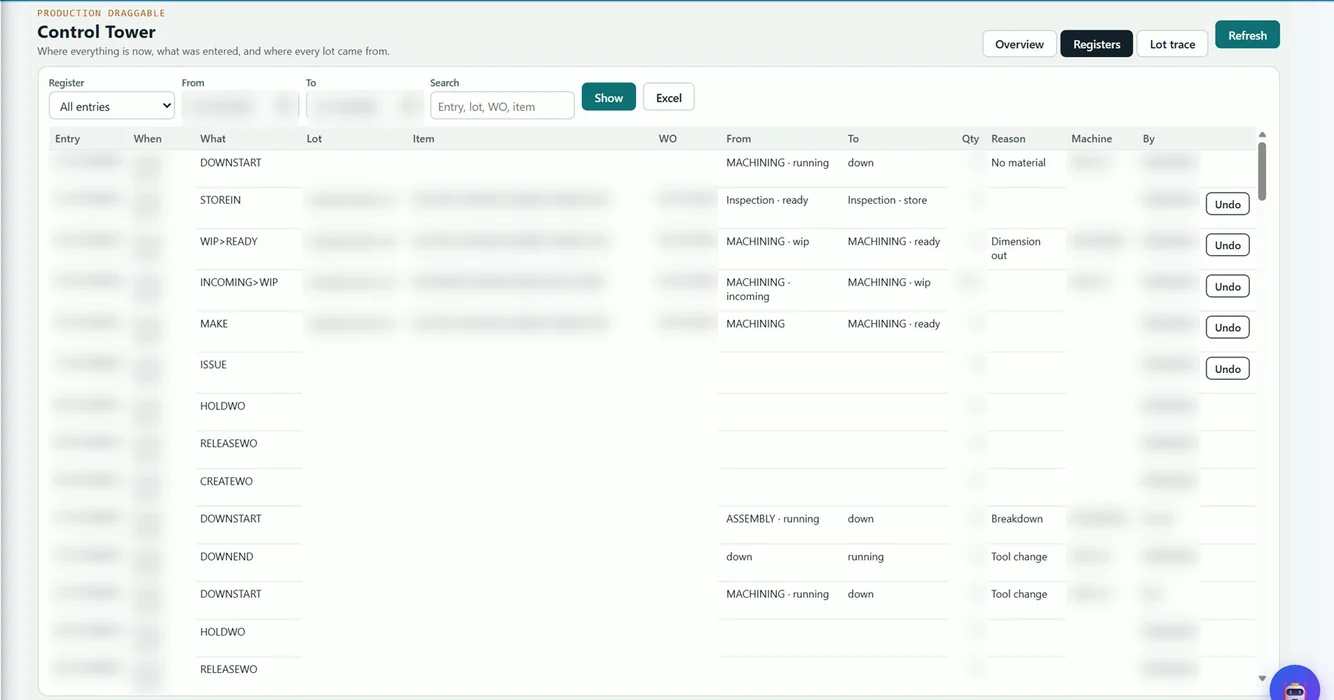
Tiles show WIP on the floor, open and late work orders, rejection and downtime for the last seven days, and entries today. Below are WIP by stage, rejections and downtime by reason (biggest causes first) and late work orders. The Registers tab lists every entry by date, lot, work order or item, with Excel export, and Lot trace shows any lot’s full history.
WO/26/0001 · 40 nos
38 nos · started 09:40
WO/26/0002 · 60 nos
Reason: dimension
Painting
Worked example: one work order through the floor
Tejaxo Manufacturing receives two sales order lines for Product A, a machined and painted assembly. The route is Cutting, Machining, Painting, Assembly. All numbers are samples.
| Drag | Board | Entry | Result |
|---|---|---|---|
| Two SO lines (120 + 80 nos) onto Planned WO | Order Desk | WO/26/0001 | Draft WO for 200 nos, due on the earlier SO date |
| Planned WO onto Released | Order Desk | WO/26/0001 | BOM exploded; pick list sent to Material Board |
| Pick list onto Issued to stage, heat no. H-0101 | Material Board | IS/26/000045 | RM in Cutting’s Incoming |
| Make 200 blanks from the tray | Stage Board, Cutting | PR/26/000233 | New lot in Ready |
| Lot onto Machining | Stage Board, Cutting | MV/26/000810 | Lot in Machining’s Incoming |
| Complete: 196 good, 4 rejected (reason: dimension) | Stage Board, Machining | MV/26/000812, RJ/26/000094 | 196 in Ready; 4 in Rejected register |
| Final stage lot onto Main store | Stage Board, Assembly | RC/26/000051 | FG received; WO completes when store qty reaches WO qty |
Entry types and what they mean
| Series | Entry | Made by |
|---|---|---|
| WO | Work order | Plan, add line, release, hold, resume, cancel |
| IS | Issue | RM issued on the Material Board |
| MV | Move | Start, complete, send to stage, merge, rework done |
| RJ | Rejection | Drop on Rejected or Rework |
| PR | Production | Make or assemble from the tray |
| RC | Store receipt | Drop on Main store |
| DT | Downtime | Reason on a machine, Back to running |
| UN | Undo | Any Undo button |
Undo never deletes history. It writes a reversing UN entry, and it is refused if a later entry has already moved that lot.
Mistakes the boards refuse
A drag-and-drop screen is only useful if it is strict. The boards will not let you:
- release a work order while a made item has no route;
- issue more raw material than the work order’s BOM needs;
- send a lot to a stage that is not linked in its route, or store from a stage that is not final;
- make more than the work order needs, or more than the stage has material for;
- reject or rework without a reason;
- start a lot on a machine that is down;
- merge lots of different items or work orders;
- cancel a work order with material still on the floor.
When a drop is refused, a message says why and what to do instead.
Lot trace: from finished goods back to the heat
Scan or type a lot number in Lot trace and the system shows where its quantity is now, which lots and heats it was made from, which lots it went into, and every entry with number, time, quantity and user. For forging and casting-based plants, carrying the heat number from raw-material issue to the finished lot answers the first question in any customer complaint. It complements the batch-wise stock and FIFO issue in inventory management.
Who it suits and how to start
The boards suit discrete manufacturers with several stages per item: machinery and equipment makers, auto-component plants and fabricators. They sit alongside the planning side of Tejaxo ERP: MPS, work orders, job cards and capacity, described on our production planning software page. Set-up is simple to describe: add your real stages in the stage master, set a route for every FG and SFG, and put machines on their stages. Every day, supervisors pick shift and operator on the Stage Board and work by drag.
How Tejaxo implements this
We begin with a discovery workshop on your floor to list stages, machines, rejection and downtime reasons. We then load a few of your real items, BOMs and routes and run a pilot on your own data, so supervisors try the boards on work they recognise. Go-live comes with training for planners, store keepers and supervisors, and support continues from the same team. See our implementation approach.
Next step
If your WIP report is always a shift behind, see the boards working. Book a free demo, or message us on WhatsApp at +91 96717 27474.
Frequently asked questions
What is drag-and-drop production control software?
It is shop-floor software in which work orders, material pick lists, lots and machines appear as cards on boards. Supervisors move a card to a new column to record what happened, and the system saves that move as a numbered entry instead of asking for a form.
How is WIP tracked on the boards?
Each stage has its own board with Incoming, WIP lanes per machine, Ready and Rework / Rejected columns. Every lot is a card, so WIP by stage is simply the quantity sitting in those columns, and the Control Tower shows WIP by stage for the whole floor.
Can a wrong drag be undone?
Yes. After every drop a message shows the entry number with an Undo button for 12 seconds, and undo is also available later from the registers. Undo writes a reversing entry, and it is refused if the lot has already moved on.
Does it record rejection and downtime reasons?
Yes. Rejection and rework need a quantity and a reason, and downtime is recorded by dragging a reason onto a machine. Both have their own registers in the Control Tower.
Can I trace a finished lot back to the raw material heat number?
Yes. A heat or batch number entered at RM issue stays on the lot. Lot trace shows what a lot was made from, what it went into and every entry on it, from FG back to the melt.
Does it work on tablets?
The boards are used with a mouse in a desktop browser. Each user needs view and save rights for the boards they use.