
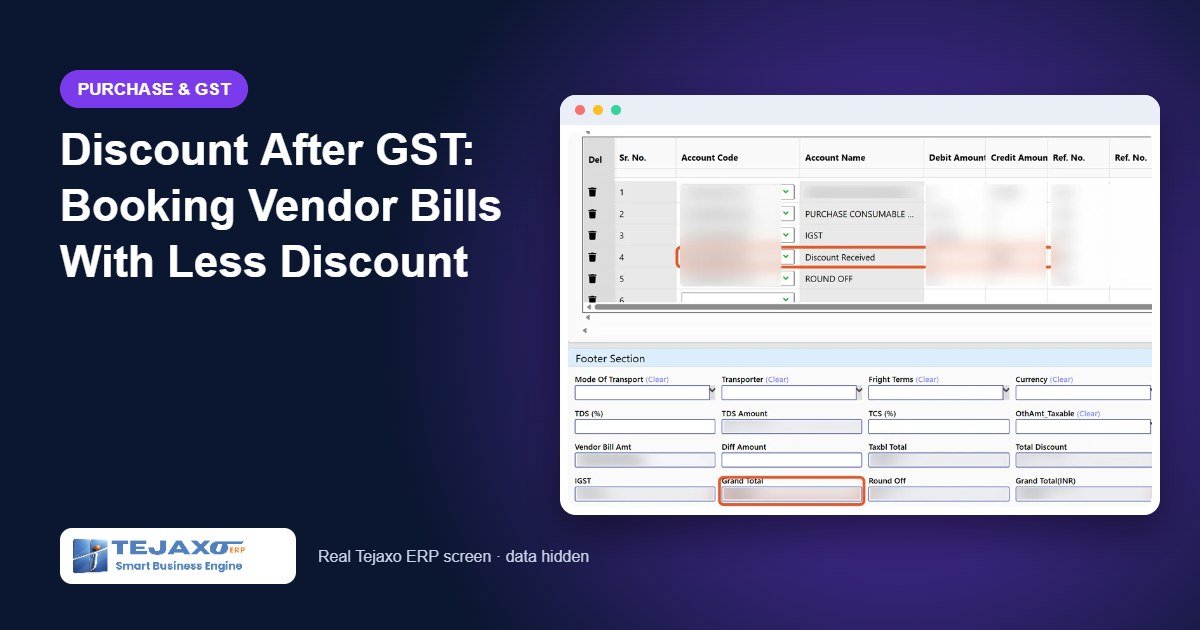
Some suppliers give their discount in an unusual place: below the GST. The bill shows the taxable value, adds full GST, and then deducts a round discount from the grand total so that the payable comes to a neat figure. Booking a discount after GST correctly is harder than it looks. Put it in the wrong field and your input tax, your stock value or your supplier balance will not match the bill.
Most accounts teams handle it with a manual adjustment, or let the difference drift into the round-off ledger. Neither tells you later what really happened. This article explains why a line discount is the wrong tool here, and how the Less Discount (After GST) field in Tejaxo ERP carries the discount from gate entry to purchase voucher with the right accounting.
Why a line discount gets the tax wrong
A normal trade discount is given before tax. You enter it as a line discount percentage or amount, it reduces the taxable value, and GST is calculated on the lower value. That is correct when the supplier has done the same.
With a discount after GST, the supplier has charged GST on the full taxable value. If you enter the discount as a line discount:
- The ERP reduces the taxable value, so it calculates less GST than the bill shows.
- Your input tax no longer matches the tax on the supplier’s invoice.
- The grand total differs from the vendor bill, so reconciliation with the supplier’s statement fails.
The fix is a separate header-level field. GST stays on the full taxable value, and only the grand total is reduced.
Before GST or after GST: how to tell from the bill
Before deciding which field to use, look at where the discount sits on the supplier’s invoice. Three quick checks settle it:
- Position. If the discount appears on the item lines or above the taxable value, it is before GST. If it appears below the tax lines, after the GST total, it is after GST.
- Tax base. Multiply the taxable value printed on the bill by the GST rate. If the result equals the tax printed, GST was charged on the full value and the discount came afterwards.
- Grand total. If taxable value plus tax, less the discount, equals the payable on the bill, you are looking at a discount after GST.
When the checks point to a discount before GST, use the line discount percentage or amount. When they point to a discount after GST, use the header field described below. Getting this right at the gate saves correction work in stores and accounts later.
Worked example: a packing material bill
Tejaxo Manufacturing (plant in Haryana) buys three packing items from Tejaxo Vendor (in Uttar Pradesh). Because the supply is inter-state, IGST at 18% applies. The supplier deducts ₹3,585 after GST so the payable is a round ₹55,000.
| Item | Qty | Rate ₹ | Taxable ₹ | IGST 18% ₹ |
|---|---|---|---|---|
| Product A (poly bag, small) | 12,000 | 1.25 | 15,000.00 | 2,700.00 |
| Product B (poly bag, large) | 4,050 | 3.37 | 13,648.50 | 2,456.73 |
| Product C (zip-lock bag) | 30,000 | 0.70 | 21,000.00 | 3,780.00 |
| Total | 49,648.50 | 8,936.73 |
Taxable value plus IGST is ₹58,585.23. Rounded, that is ₹58,585.00. Less the discount after GST of ₹3,585.00, the payable is ₹55,000.00. The full IGST of ₹8,936.73 stays as input tax, because that is the tax charged on the bill.

Step by step in Tejaxo ERP
Step 1: Gate entry
Open Material Management > Gate Without PO (or With PO) and pick the supplier; GSTIN, state and address fill in. Enter the party invoice number, date and vehicle. Add the items with bill quantity and rate; taxable value and IGST are calculated. Leave the line discount blank, because this discount is after GST.
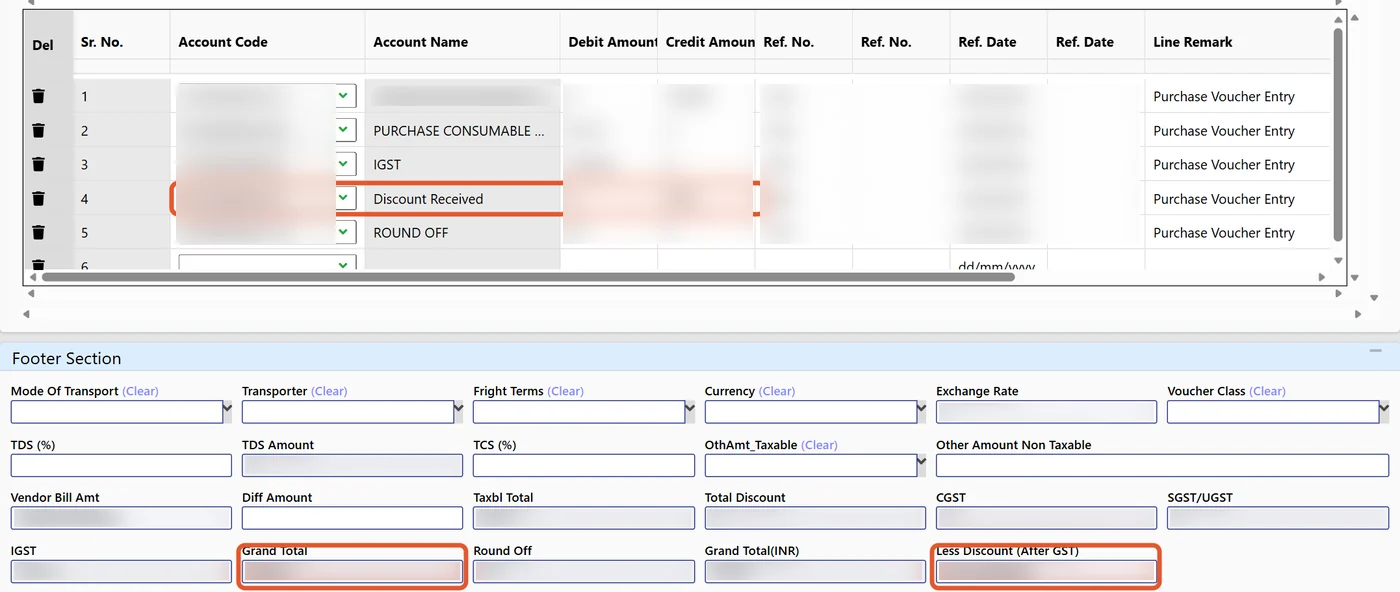
Then enter 3,585 in Less Discount (After GST) in the header. As soon as you leave the field, the grand total updates: ₹58,585.23 minus ₹3,585 = ₹55,000.23. The gate entry does not round, which is its existing behaviour. On save, the system recalculates the total again, so an outdated total cannot be saved by mistake.
Step 2: MRR
Open MRR Without PO (or With PO), pick the gate entry, and the party, bill number, date, all lines and the Less Discount come across. The MRR applies the round-off first and then deducts the discount:
| Calculation | ₹ |
|---|---|
| Taxable + IGST | 58,585.23 |
| Round off | – 0.23 |
| Rounded total | 58,585.00 |
| Less Discount (After GST) | – 3,585.00 |
| Grand total payable | 55,000.00 |
The MRR also does something important for costing: it shares the discount across the item lines in proportion to their value and reduces each line’s landed cost. GST and input tax are not affected.
Step 3: Basic Quality
Quality accepts the quantities as usual and the lines enter the store. The discount plays no part in this step. Purchase vouchers are made only for quality-passed MRRs, so this step must be complete first (unless your plant uses automatic quality).
Step 4: Purchase Voucher
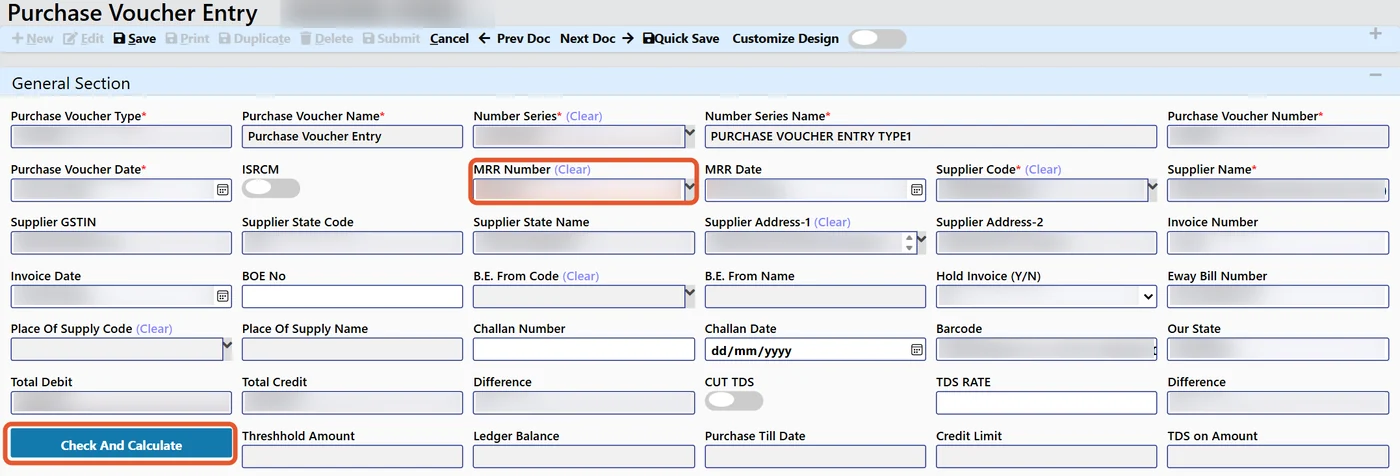
Open Finance and Accounting > Purchase Voucher Entry and pick the MRR. Party, invoice, items and the Less Discount come across from the MRR. If the final bill differs, the discount can be changed here, followed by Check And Calculate. The voucher lines are visible at once in the See Voucher tab, and the footer shows grand total, round off, Less Discount and vendor bill amount side by side for a final check.
The accounting entry
| Ledger | Debit ₹ | Credit ₹ |
|---|---|---|
| Tejaxo Vendor (supplier) | 55,000.00 | |
| Purchase – consumables and packing | 49,648.50 | |
| IGST input | 8,936.73 | |
| Discount Received | 3,585.00 | |
| Round off | 0.23 | |
| Total | 58,585.23 | 58,585.23 |
Three things are now right. The supplier balance is exactly the vendor bill amount, ₹55,000. Input IGST is the full ₹8,936.73 shown on the bill. And the discount sits in its own Discount Received ledger, where it can be reported and reviewed, instead of being buried in round off.
A note on GST law: when a discount is given after the invoice, the tax treatment depends on how the supplier and you have agreed it and whether a credit note is issued. Tejaxo ERP records the bill as the supplier has issued it. If you are unsure whether a particular discount should be handled through a credit note instead, check with your tax adviser.
One-time setup
- Update Database. This adds the Less Discount field and its setting without disturbing existing data, as with every Tejaxo ERP feature update.
- Set the Discount Received ledger in ERP configuration (Account Code For Discount Received). If it is left blank, the discount line posts to a “Not Found” fallback ledger, which the finance audit checks will flag.
- Make the field visible on the Gate, MRR and Purchase Voucher forms using the no-code Form Designer.
Common mistakes and how the ERP prevents them
- Using the line discount for a post-GST discount. Use Less Discount (After GST) instead; line discount is only for discounts before tax.
- Expecting the gate total to match the bill to the paisa. The gate does not round (₹55,000.23 in the example); the MRR and purchase voucher round first, then deduct the discount.
- Saving an old total. The gate recalculates on save.
- Forgetting the ledger setting. Set the Discount Received ledger before the first entry.
- Worrying about old entries. Blank or zero discount keeps the old behaviour; nothing changes unless an amount is entered.
Who this is for
Any plant whose suppliers round their bills with a post-tax discount, which is common for packing material, consumables and trading purchases. It matters most where landed cost drives product costing, such as packaging and auto component manufacturers. See how purchase, stock and finance fit together in Tejaxo ERP, and how stock value flows into reports on our inventory management page.
How Tejaxo implements this
We start with a discovery session with your accounts and purchase teams to collect real examples of how suppliers bill you. In the pilot we enter your own bills, including post-GST discounts, so you can compare the ERP’s voucher with your current books. Go-live comes with training for stores and accounts, and the same Tejaxo team supports you afterwards. Tejaxo Technologies Pvt. Ltd. has been building manufacturing ERP since 2017 for 50+ clients.
Small discounts booked the wrong way add up to large reconciliation problems at year end. Book a free demo to see Less Discount (After GST) on sample bills, or WhatsApp us on +91 96717 27474.
Frequently asked questions
What is a discount after GST on an invoice?
It is a discount shown below the tax total on the supplier’s bill, deducted from the grand total after GST has been charged on the full taxable value. The tax on the bill is not reduced.
Why not enter it as a line discount in the ERP?
A line discount reduces the taxable value, so the ERP would calculate less GST than the supplier charged. Your input tax and grand total would then not match the vendor bill.
Where does the discount go in the accounts?
In Tejaxo ERP the purchase voucher credits a Discount Received ledger with the discount amount. Input GST stays at the full amount on the bill and the supplier is credited with the net payable.
Does a discount after GST reduce input tax credit?
In Tejaxo ERP the input GST is booked exactly as charged on the supplier’s bill, because that is the tax shown on the invoice. Whether a particular discount should instead be settled by a credit note from the supplier is a question for your tax adviser.
Does the discount change the stock value of the items?
Yes. At the MRR the discount is shared across the item lines in proportion to their value and reduces their landed cost. GST is not affected.
What happens if the Less Discount field is left blank?
Blank or zero means the old behaviour with no change. The calculation changes only when a discount amount is entered.