
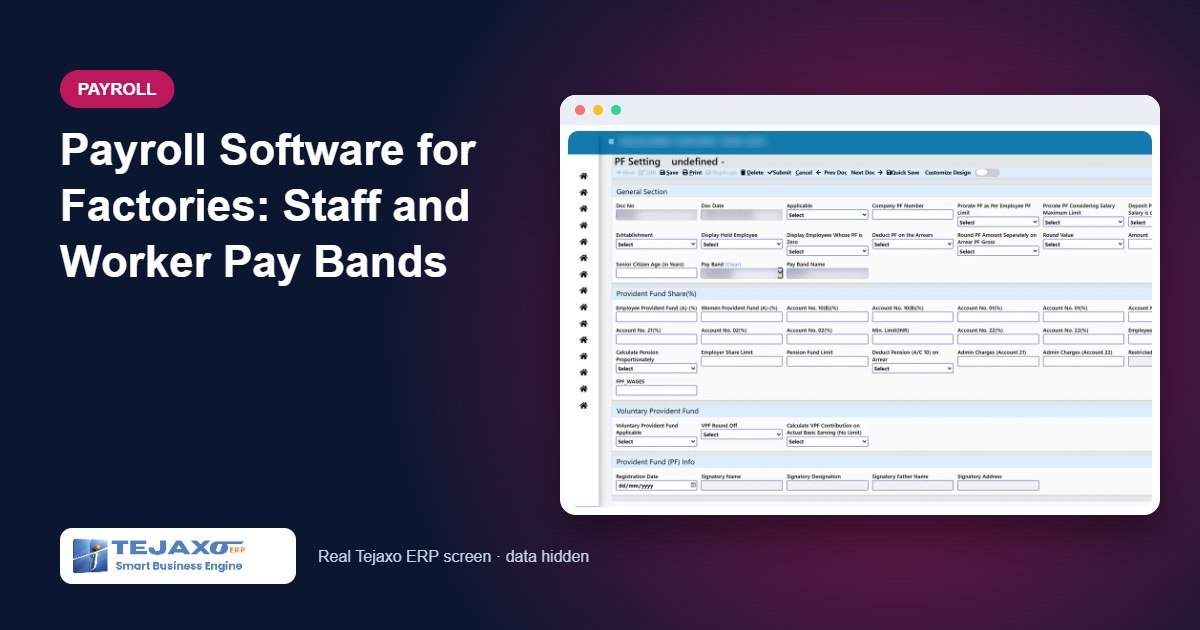
In most Indian factories the payroll team is really running two or three payrolls inside one plant. Office staff are paid monthly with one set of allowances; workers on the shop floor are paid on attendance, with overtime, canteen deductions and ESI; a third group may follow yet another set of rules. Generic payroll software for factories often assumes one setting per plant, so the team ends up with workarounds: separate companies in the software, manual corrections after the salary run, or an Excel sheet for “the other group”.
Tejaxo ERP solves this with pay bands. This article explains what a pay band is, how it changes setup, attendance, salary and statutory reports, and walks through a worked example for one plant with staff and workers.
What a pay band does
A pay band groups employees who share the same statutory settings and salary components. Each group then gets its own attendance and its own salary run. Four ideas sum it up:
- One master list. Bands are created once in the PayBand Master. Each gets an automatic code (BND000001, BND000002 and so on) and a name such as STAFF, WORKER or BAND 1.
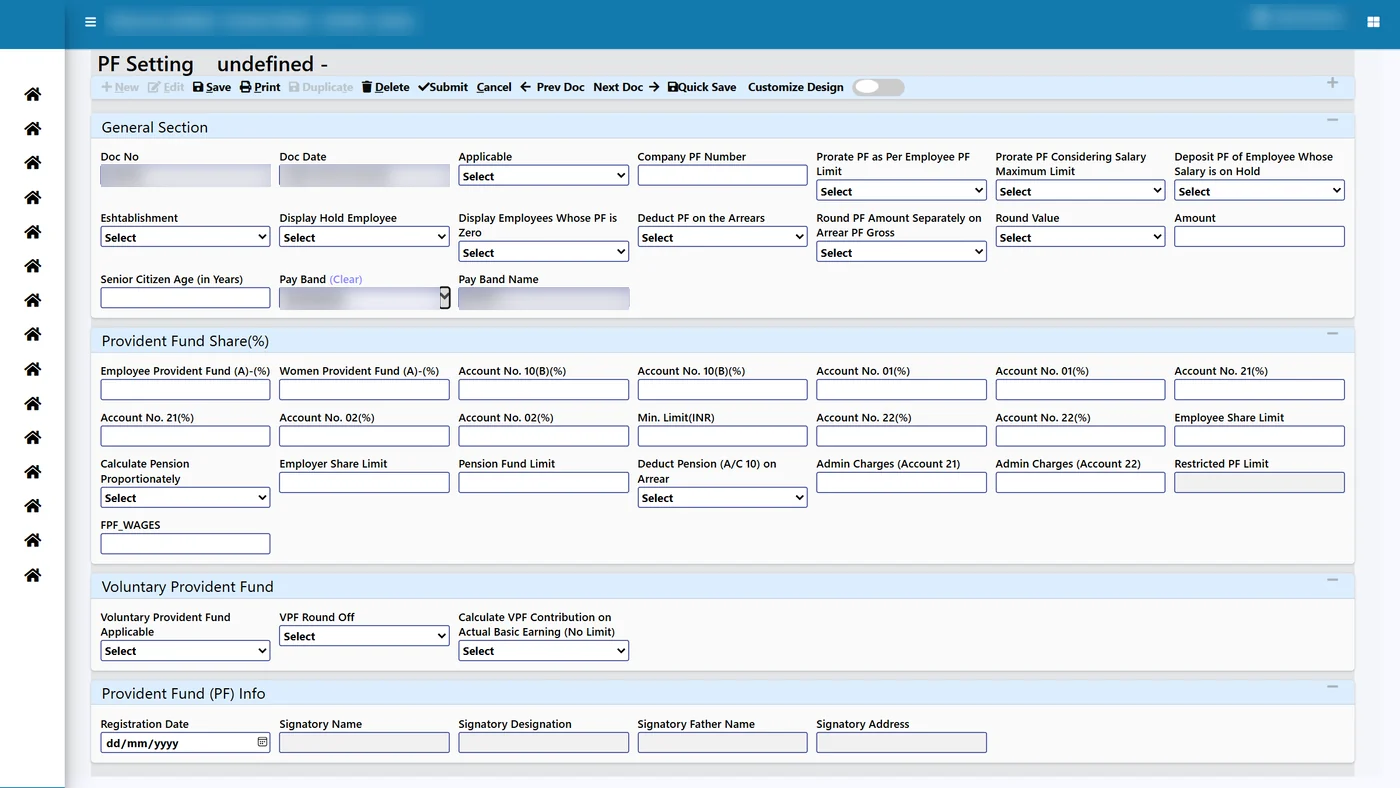
- Settings per band. PF, ESI, LWF, canteen, overtime (OT) and salary components are saved per plant and pay band.
- Blank means default. A setting saved with an empty pay band is the plant default. It is used for employees with no band and for any band that has no setting of its own.
- One run per band. Attendance and salary processing work per plant, month and pay band, and a second salary run for the same band and month is blocked.
Which setting is used when
The rule is simple and predictable, which matters when an auditor or the labour department asks why a deduction was made.
- PF, ESI, LWF, canteen and OT are picked one by one: if the employee’s band has its own setting, that is used; otherwise the plant default applies.
- Salary components are taken as a whole set: if the band has any components of its own, only the band’s set is used; otherwise the default set is used. This prevents a half-mixed salary structure.
- An employee with a blank band always follows the plant default.
Because the plant default always exists as a fallback, you only need to create band-specific settings where the rules genuinely differ.
One-time setup, step by step
Step 1: Create the bands
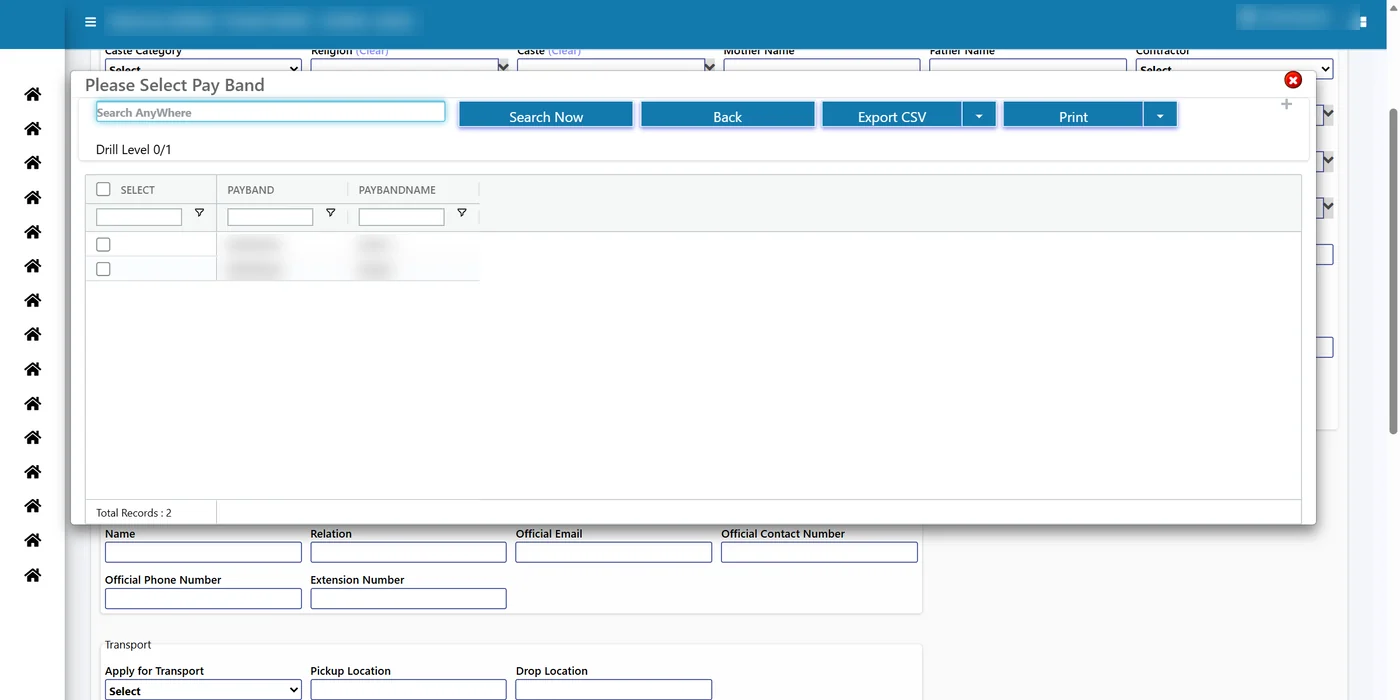
In Payroll > Payroll Master > General Master > PayBand Master, click New, type the band name and save. The code is generated automatically. Create every band before assigning them, because the pay band lookup on all other screens lists only bands saved here. A band that is already used by an employee, setting or salary cannot be deleted.
Step 2: Assign a band to each employee
Open the employee in Employee Details, pick the band from the lookup and save. An employee belongs to one band. Leave the field blank for employees who should follow the plant default.
Step 3: Save statutory and salary settings per band
On PF Setting, ESI Setting and LWF Setting (Statutory Master), and on Salary Components, OT Config and Canteen Config (Salary Master), select the pay band and save that band’s rates, limits and rounding. ESI holds employee %, employer % and the ESI limit; LWF holds contributions, limits, rounding and LWF on OT; OT Config holds the OT earning head, the OT multiplier and hours per day; Canteen Config holds the rate per day. Salary components carry their Part of Gross, PF, ESI and LWF flags. If a band already has a setting, the system tells you to open and edit the existing one rather than create a duplicate.
Multi-plant companies can use Copy From Main to copy the main plant’s settings band by band into another plant, then change only what differs.
Monthly processing, band by band
Attendance per band
In Employee Attendance, select the month and the band. Fill Employee, Download Template and Load Attendance bring only that band’s employees. Upload the filled sheet, check the days and save. If the sheet contains an employee of another band, saving stops and lists the employee codes, so nobody is processed under the wrong band’s rules. Attendance itself typically comes from biometric punches with approvals, leave and OT rules, as described on our Tejaxo ERP page.
Salary process per band
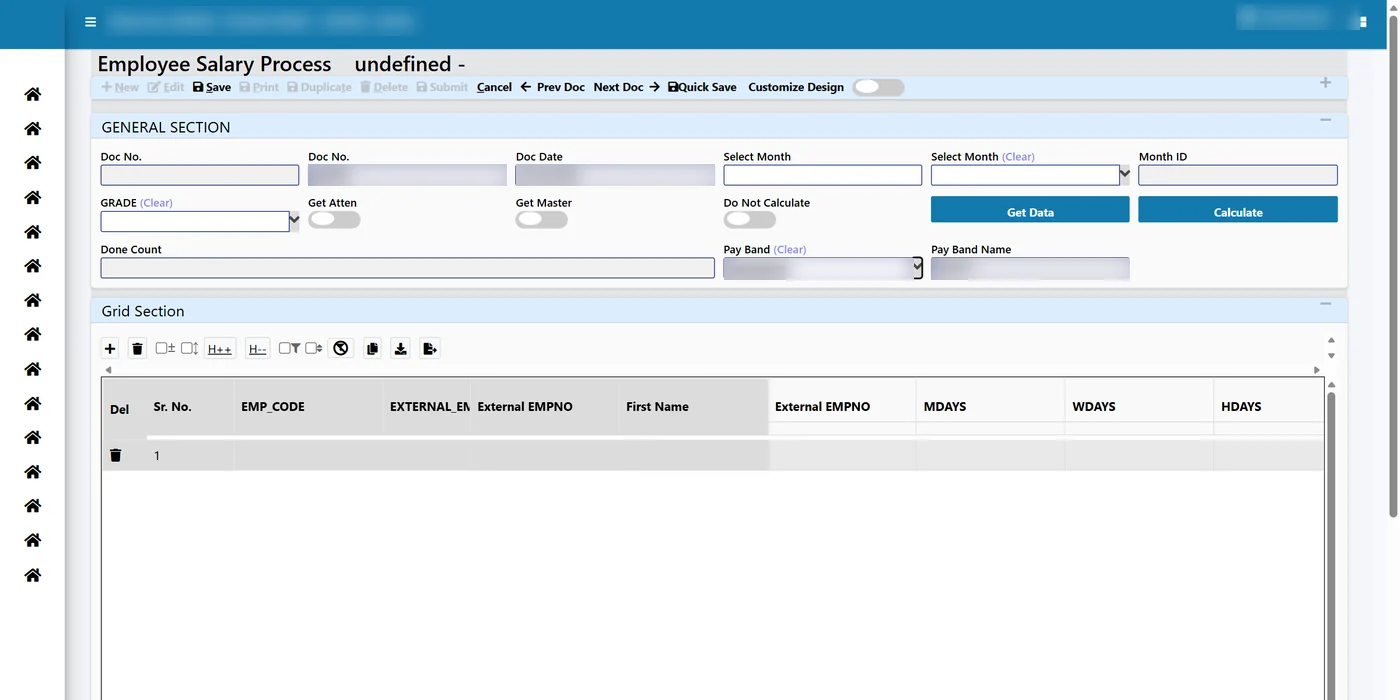
In Employee Salary Process, select the month and band, click Get Data to load that band’s employees, attendance and settings, then calculate, review and save. Repeat for the next band, and once with a blank band if some employees have none. The list shows the band of each salary document. If you try to save a second salary for the same plant, month and band, the system blocks it; open the saved one and recalculate instead. If attendance for that band has not been saved, the salary process asks for it first.
Reports and pay slips
Every payroll report has a pay band filter: salary register, PF statement / ECR, ESI statement, LWF statement, OT reports, arrear and transfer reports. Leave it blank to see all bands or pick one or more. The salary slip print also filters by band. PF and ESI statements show each employee with the settings of his own band, so the combined ECR stays correct even when bands have different rules.
Worked example: staff and workers in one plant
Tejaxo Manufacturing, Plant 1, has two bands. The settings below are sample values for illustration; always use the rates and wage limits notified at the time of processing.
| Setting | STAFF (BND000001) | WORKER (BND000002) |
|---|---|---|
| PF | 12% of basic, wage limit 15,000 | 12% of basic, no limit applied (plant default) |
| ESI | Not applicable above ESI limit | Employee 0.75%, limit 21,000 |
| Canteen rate per day | 0 | 30 |
| Salary components | Basic, HRA, Conveyance, Special | Basic, Allowance (default set) |
For the sample month, one employee from each band:
| Item (Rs) | Staff member (STAFF) | Worker (WORKER) |
|---|---|---|
| Basic | 30,000 | 12,000 |
| Other earnings | 20,000 | 3,600 |
| Gross | 50,000 | 15,600 |
| PF (employee) | 1,800 | 1,440 |
| ESI (employee) | 0 | 117 |
| Canteen (22 days) | 0 | 660 |
| Net pay | 48,200 | 13,383 |
Two salary documents are saved for the month: one for STAFF and one for WORKER. Note the canteen line for staff: if the STAFF band had no canteen setting of its own, it would fall back to the plant default. Saving a zero rate for STAFF makes the intention explicit. This is exactly the kind of detail that goes wrong when two groups are squeezed into one setting.
Common payroll mistakes pay bands prevent
- Wrong deductions for one group. With one plant-level setting, someone edits ESI or canteen values for workers and staff salaries change too. Band-wise settings keep them apart.
- Double salary runs. The one-run-per-band rule stops a second salary for the same month and band.
- Employees in the wrong sheet. Attendance upload rejects employees who belong to another band and lists them.
- Separate companies just for payroll. Some plants create a second company only to handle worker payroll. With bands, statutory reports stay in one plant and one ECR.
- Lost history after an upgrade. When the administrator runs Update Database, old settings and salaries keep a blank band and continue as the plant default. Users sign in again to see the new fields.
Who it is for
Pay bands suit any plant where groups of employees follow different rules: staff and workers, permanent and contract workers, or different grades with their own allowances. They are especially useful in labour-intensive belts such as Bahadurgarh, Palwal or Faridabad, where one plant may have office staff, skilled operators and helpers on very different salary structures. If your plant is in this area, see our manufacturing ERP page for Bahadurgarh.
Payroll in Tejaxo ERP sits in the same system as production, inventory and accounts, and ends in the statutory files (PF ECR, ESI, LWF, PT), a NEFT bank file and the salary register. Smaller units can read more on our ERP for small manufacturing businesses page.
How Tejaxo implements this
We begin with a discovery session with your HR and accounts team to list the employee groups and the rules each follows today. We then run a pilot on your own masters: your bands, your employees, your PF, ESI and LWF settings and a real month of attendance, and compare the result with your current salary sheet. Go-live includes training for the payroll team, and the same Tejaxo team supports you afterwards. Read more about our approach on the ERP implementation page.
Run staff and worker payroll from one plant
If your payroll team maintains separate sheets or separate companies just to pay different groups of employees, pay bands are worth a look. Book a free demo or message us on WhatsApp at +91 96717 27474, and we will walk through a salary run with your own employee groups.
Frequently asked questions
What is a pay band in payroll?
A pay band is a group of employees who share the same statutory settings and salary components, for example STAFF or WORKER. In Tejaxo ERP each band in a plant gets its own PF, ESI, LWF, canteen, overtime and salary component settings, and its own monthly attendance and salary run.
Can staff and workers in the same plant have different PF and ESI rules?
Yes. PF, ESI and LWF settings are saved per plant and pay band. A band without its own setting automatically uses the plant default, which is the setting saved with a blank pay band.
Can we run salary for workers before staff?
Yes. Attendance and the Employee Salary Process work per plant, month and pay band, so each band is processed separately. A second salary run for the same plant, month and band is blocked; to correct it, open the saved run and recalculate.
Do PF ECR and ESI reports work band-wise?
Yes. The salary register, PF statement / ECR, ESI, LWF, overtime and arrear reports and the salary slip all have a Pay Band filter. Leave it blank to see all bands.
What happens to our old payroll data when pay bands are switched on?
Old settings and salaries carry a blank pay band and act as the plant default, so existing data keeps working. The administrator runs Update Database once, which adds only missing columns, fields and menus.
Can pay band settings be copied to another plant?
Yes. A Copy From Main option copies settings band by band from the main plant into the current plant, after which you edit only what differs.