
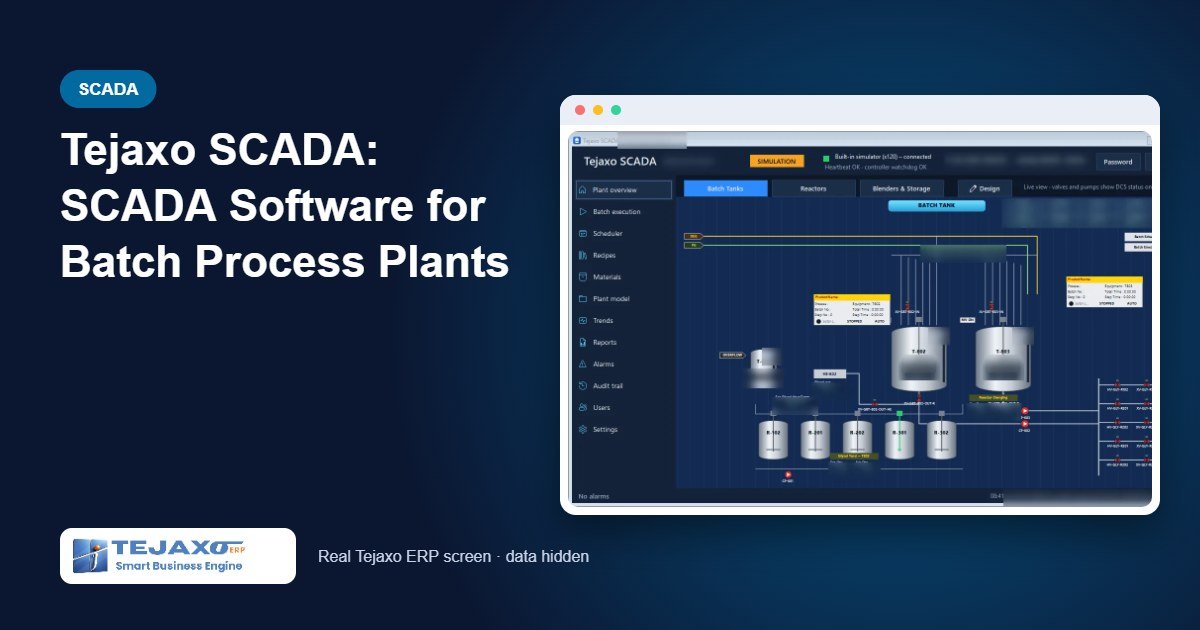
In many batch process plants – resins, chemicals, coatings, intermediates – the batch sheet is still a printed paper that travels from the shift in-charge to the panel operator and back. Quantities are written by hand, sample results are noted on a separate sheet and timings are reconstructed at the end of the shift. When a customer complaint arrives three months later, nobody can say exactly when a charge went in or who confirmed a step. SCADA software for batch process plants exists to close this gap, and Tejaxo SCADA is Tejaxo’s own product built for exactly this job, linked to Tejaxo ERP.
This article explains what Tejaxo SCADA does, how a batch runs from batch number to printed batch report, how recipes are controlled, and – most importantly – how the software is designed to stay on the safe side of the plant’s control system.
What Tejaxo SCADA does in a batch plant
Tejaxo SCADA gives the plant four things on one screen:
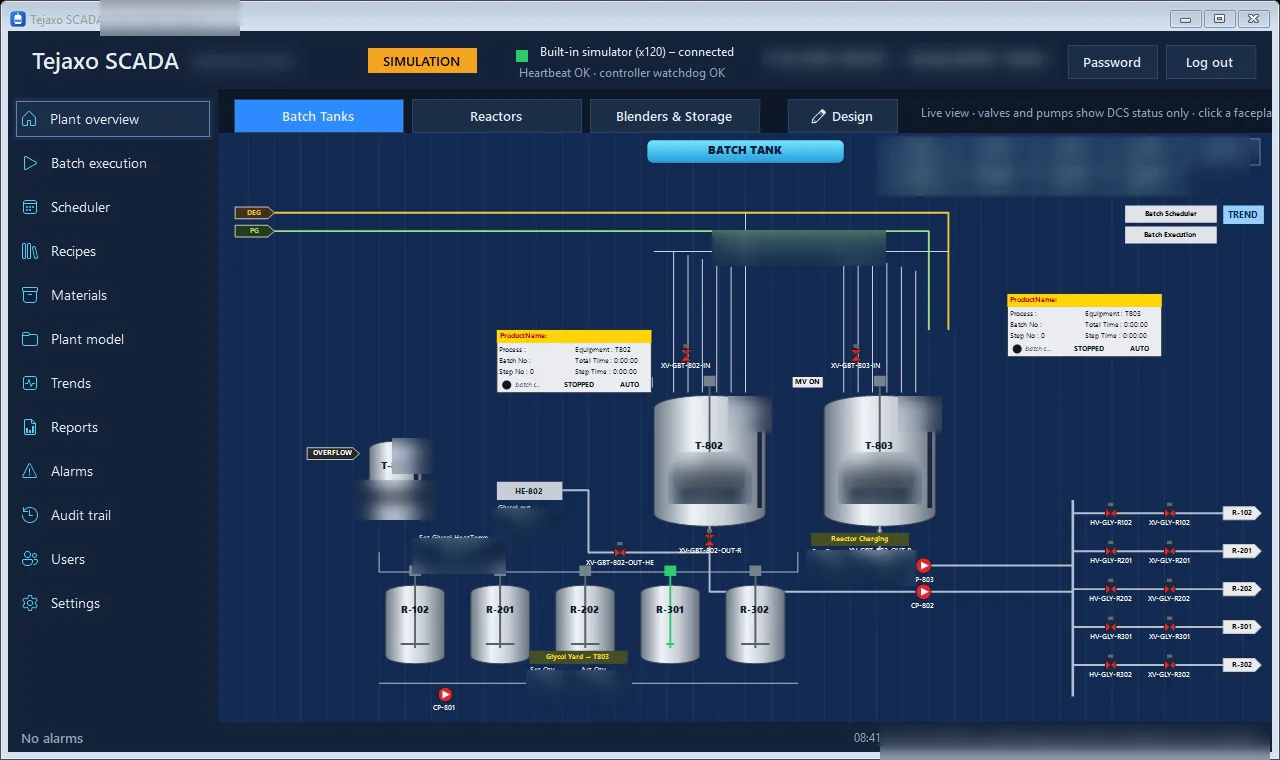
- Live plant view. Batch tanks, reactors, blenders, storage tanks, valves, pumps and utilities (air, nitrogen, chilled and cooling water, thermic fluid, condensate) with live values from the controllers.
- Batch execution. Master recipes run step by step on each unit, and every step, quantity and time is recorded.
- Recipes and scheduling. Recipes are created and released, batch numbers are registered and batches are scheduled.
- Records and reports. Trends, printable batch reports, alarms and a complete audit trail of every action.
The result is a complete electronic batch record: every step, every charge, every sample result and every time stamp, stored in a SQL Server database and available on web and mobile view.
Safety first: what Tejaxo SCADA deliberately does not do
A batch SCADA is only as good as its safety design. Tejaxo SCADA is built around one clear rule: valves, pumps, agitators and interlocks are operated only from the DCS (the plant’s distributed control system). Tejaxo SCADA shows their state – a valve is green when open and red when closed – but it does not open or close them.
What the software sends to the controller is limited to recipe step data and batch commands: confirm, hold, resume and abort. The controller checks every request and may refuse it. Typical refusals and what they mean:
- Unit is in MANUAL – the DCS operator has taken the unit into manual; the step waits until it is back in AUTO.
- Quantity exceeds free capacity – the charge would overfill the vessel, so the request is refused.
- Sequencer not idle – the unit is still busy with another step.
A heartbeat runs between Tejaxo SCADA and the controller. If SCADA stops responding for longer than the configured timeout, the controller holds its running sequences on its own. Tejaxo SCADA also never retries a refused step by itself; a faulted stage waits for an operator decision. Further protections include:
- Three controller modes – Simulation (built-in plant and controller simulator, nothing sent to the plant), Read-only (connected to real controllers, every write refused – used for commissioning and shadow running) and Live. Even in Live mode, batch writes happen only after an administrator enables a separate “Live writes” switch after commissioning.
- A tag map in which only tags marked Write or Command can ever be written.
- Connection to controllers over OPC UA, with a SignAndEncrypt security mode recommended.
The DCS remains the system of record for process alarms. Tejaxo SCADA adds the batch layer on top: recipes, sequencing commands, records and reports.
How a batch runs, step by step
The batch life cycle in Tejaxo SCADA has six stages: register, schedule, start, confirm steps, complete and report.
1. Register the batch
The shift in-charge selects a released master recipe, enters the batch size in kg (within the recipe’s allowed range), the batch number in the plant’s format, the operator and the production executive. The batch number is now reserved for that recipe.
2. Schedule it
Scheduling sets the planned start and creates a frozen control recipe – a copy of the master recipe for this batch only. Later edits to the master recipe cannot change a batch that is already scheduled. A batch that has not started can be unscheduled.
3. Start it
Before the batch starts, Tejaxo SCADA checks that every unit in the recipe is free, that each unit is in AUTO in the DCS and that the unit sequencer in the controller is idle. If any check fails, a message tells the operator what to fix.
4. Follow and confirm the steps
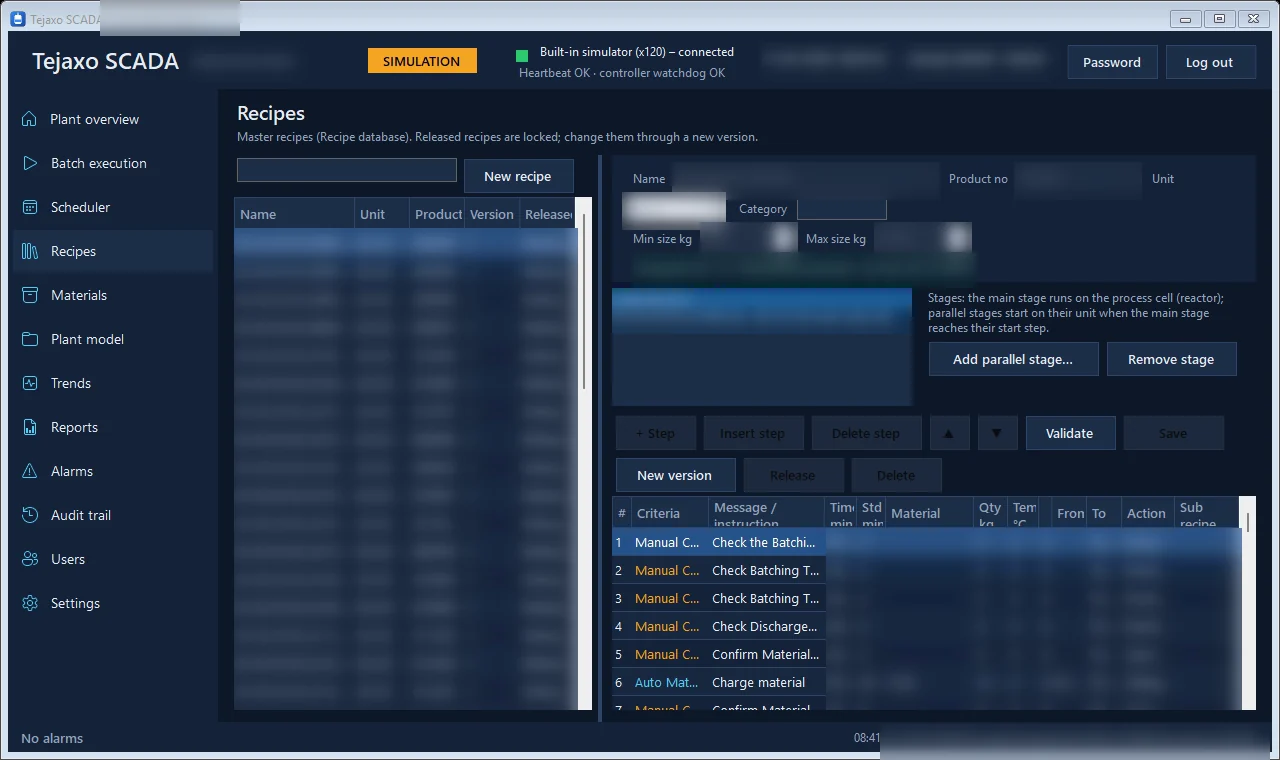
The batch execution screen shows one row per stage (the main stage on the reactor, parallel stages on tanks or blenders), the current instruction, the set and actual quantity, and only the action button that fits the current step. Step types include:
- Manual confirmation – the operator checks in the plant and confirms, with an optional remark.
- Manual material charge – the operator charges the material and enters the actual kg; a remark is required if the quantity is more than 5% off the set value.
- Sample checks – the operator enters results such as acid value or viscosity and ticks “within specification” to continue.
- Auto material charge, timer, heating / cooling and transfer – the controller performs the step; the operator watches set and actual values.
Hold, resume and abort apply to the whole batch. Abort needs a reason and a double confirmation; the equipment is then made safe from the DCS. After a fault, “Retry step” sends the same step again once the cause is fixed, and “Resync” compares the controller with the batch record after a restart.
5. Complete and report
When the last step finishes, the batch closes automatically, the units are released and the status becomes Completed. The batch report opens in the browser for printing or saving as PDF, and the batch list can be exported as CSV.
Recipe management that holds up in an audit
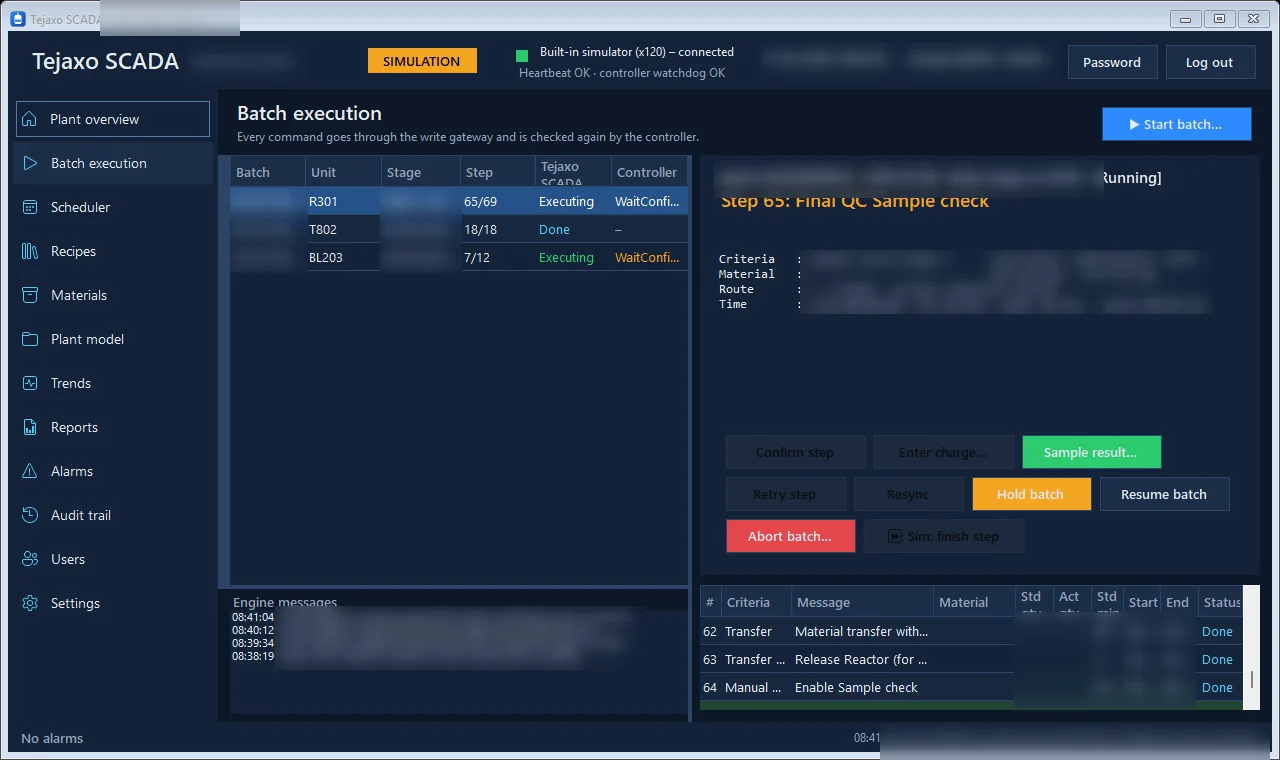
The recipe editor holds a header (name, product, unit, category, size range), a main stage and parallel stages, and a grid of steps with criteria, instruction, times, material, quantity, temperatures and route. Parallel stages – for example a batch-tank stage or a blender stage – start at a defined step of the main stage.
Before saving, Validate checks that:
- the name and unit are set and the batch size range is valid;
- every stage has steps and parallel stages start at an existing main step;
- there are no duplicate step numbers and every charge has a material;
- quantities are within unit capacity, temperatures are within 0-230 °C and timers are within 0-9999 minutes.
A recipe moves from draft to released (locked). Only released recipes can be scheduled. To change a released recipe, the engineer creates a new version. Every save, release and new version is written to the audit trail.
Worked example: one batch on a reactor and a blender
The table below shows how a sample batch of Product A appears in the electronic batch record. The main stage runs on reactor R-101; a parallel blender stage starts at main step 48.
| Step | Unit | Step type | Set | Actual | Recorded by |
|---|---|---|---|---|---|
| 3 | R-101 | Manual material charge – Raw Material 1 | 1,200 kg | 1,196 kg | Operator 1 |
| 4 | R-101 | Auto material charge – Raw Material 2 | 800 kg | 800 kg | Controller |
| 12 | R-101 | Heating | 150 °C | 150.4 °C | Controller |
| 42 | R-101 | Sample check stage 2 (acid value, viscosity) | Within spec | Within spec | Operator 2 |
| 48 | BL-101 | Parallel blender stage started | – | – | Controller |
| 60 | R-101 | Transfer to blender | 4,950 kg | 4,942 kg | Controller |
If Operator 1 had entered 1,120 kg instead of 1,196 kg at step 3, the difference would be more than 5%, and the software would ask for a remark before accepting the entry. Every entry carries the user name and time in the audit trail.
Trends, alarms and the audit trail
Trends plot temperature, column temperature, vacuum, weight and other parameters for any unit over a chosen period, with quick ranges of 8 hours, 24 hours and 7 days, and a live view of the last 30 minutes. Alarms (Hi, HiHi, Lo, Fault) can be acknowledged individually or together, with history from any date.
The audit trail records every login, recipe change, batch command and controller write – including refused writes – and can be searched and exported to CSV. Sign-in is protected by individual user names, a lockout after 5 wrong attempts and a forced password change at first sign-in. Permissions are role-based: batch execution, scheduler, recipe editor, reports, plant editor and admin.
Plant graphics without programming
Plant pages are drawn on screen in Design mode by users with the plant editor or admin permission. Tanks, valves, pipes and value boxes are added from a toolbox, moved and resized, and connected to plant tags picked from a drop-down list. Every save creates a new version that reaches all PCs, and an older version can be restored from history. If two people edit at the same time, the second save is refused so that nobody’s work is overwritten.
Linked to Tejaxo ERP
Tejaxo SCADA is linked to Tejaxo ERP, so batch, tag and alarm data from the plant can flow into production and maintenance in the ERP. For chemical and pharmaceutical manufacturers, this connects the batch record with production planning, stock and costing. Industry-specific pages: ERP for chemical manufacturers and ERP for pharmaceutical manufacturers. A short demonstration of the software in simulation mode is on our YouTube channel.
Common mistakes and how the software prevents them
- Running a batch on an unapproved recipe – only released, locked recipes can be scheduled.
- Changing a recipe mid-batch – every scheduled batch runs on its own frozen control recipe.
- Confirming steps nobody checked – only the button that fits the current step is enabled, and every confirmation carries a user name.
- Writing to the plant before commissioning – Read-only mode and the separate Live-writes switch prevent this.
- Losing control if the PC fails – the heartbeat makes the controller hold sequences.
Who it is for and how Tejaxo implements it
Tejaxo SCADA suits batch process plants with reactors, blenders and tank farms controlled by a DCS or PLC: chemicals, resins, coatings and similar recipe-driven processes. Implementation follows the same approach as our ERP projects: a discovery workshop to map units, tags and recipes; a pilot in Simulation and then Read-only mode on your own plant data; go-live and training for operators, shift in-charges and administrators; and ongoing support by the same team. See how we run projects on our ERP implementation page.
To see Tejaxo SCADA and Tejaxo ERP working together, book a free demo or message us on WhatsApp at +91 96717 27474.
Frequently asked questions
Can Tejaxo SCADA open valves or start pumps?
No. Valves, pumps, agitators and interlocks are operated only from the DCS. Tejaxo SCADA shows their state and sends only recipe step data and batch commands, which the controller checks and may refuse.
What happens if the SCADA PC stops during a batch?
A heartbeat runs between Tejaxo SCADA and the controller. If the heartbeat is lost for longer than the set timeout, the controller holds its running sequences, and the batch is resumed once the connection is restored.
How does Tejaxo SCADA connect to the controllers?
It connects to the controller or DCS over OPC UA, and only tags marked Write or Command in the tag map can ever be written.
Can we test recipes without touching the plant?
Yes. Simulation mode uses a built-in plant and controller simulator and sends nothing to the plant. Read-only mode connects to the real controllers but refuses every write, for commissioning and shadow running.
Does Tejaxo SCADA keep an electronic batch record?
Yes. Every step, charge, sample result and time is recorded with the user name, and a printable batch report is available for each batch.
Is Tejaxo SCADA connected to Tejaxo ERP?
Yes. Tejaxo SCADA is a Tejaxo product linked to Tejaxo ERP, so batch, tag and alarm data can flow into production and maintenance.