
Ask a planner how much of a particular round bar goes into one machine, and the answer often takes half an hour. The finished product’s bill of materials lists the main assemblies; each assembly has its own BOM; some of those components have BOMs of their own. Answering the question means opening one BOM after another and multiplying quantities by hand. Good BOM software should show all of it at once.
The BOM Tree in Tejaxo ERP does exactly that. It shows any finished good as an expandable, multi-level tree, multiplies quantities down every level, scales them to the number of products you plan to build, finds any part in the tree and prints the whole structure on one page. This article explains how it works, with a worked example.
Why a flat BOM is not enough
Most manufacturers in engineering, machinery and auto components do not build products from raw material in one step. A machine is made of assemblies, assemblies of sub-assemblies, and sub-assemblies of machined parts that start as bar, sheet or casting. Each level has its own BOM because each level is made, stocked or sent for job work separately.
A flat, single-level view of these BOMs creates three everyday problems:
- Hidden requirements: the raw material three levels down is invisible from the top, so shortages are discovered at the machine, not at planning.
- Manual multiplication: requirement for a build of 15 machines has to be worked out level by level, which invites errors.
- Slow answers: sales, purchase and design all ask “what goes into this product?”, and every answer means opening several screens.

How the BOM Tree is built
The BOM Tree sits in the Production menu, under BOM, next to FG BOM and BOM Costing. It needs nothing new to be entered:
- It uses your existing FG BOMs. Headers and lines come straight from the finished-goods BOMs already in the ERP.
- Sub-assemblies open up. Any component that has its own FG BOM becomes a branch, and its components appear beneath it, level after level.
- Quantities multiply down. Quantity per finished good = parent quantity × line quantity, so a part deep in the tree shows its true requirement.
- It is safe on imperfect data. If a product has two BOMs, the latest one is used. If a BOM loops back to itself, the tree stops at that point instead of running endlessly.
Using the BOM Tree, step by step
Step 1: Pick a product
Type part of a name, item code, part number or BOM number. Every product with an FG BOM is listed, with its code, part number, BOM number and number of BOM lines. Optionally, enter an FG quantity: the number of finished goods you plan to build. All quantities in the tree scale to it.
Step 2: Read the tree
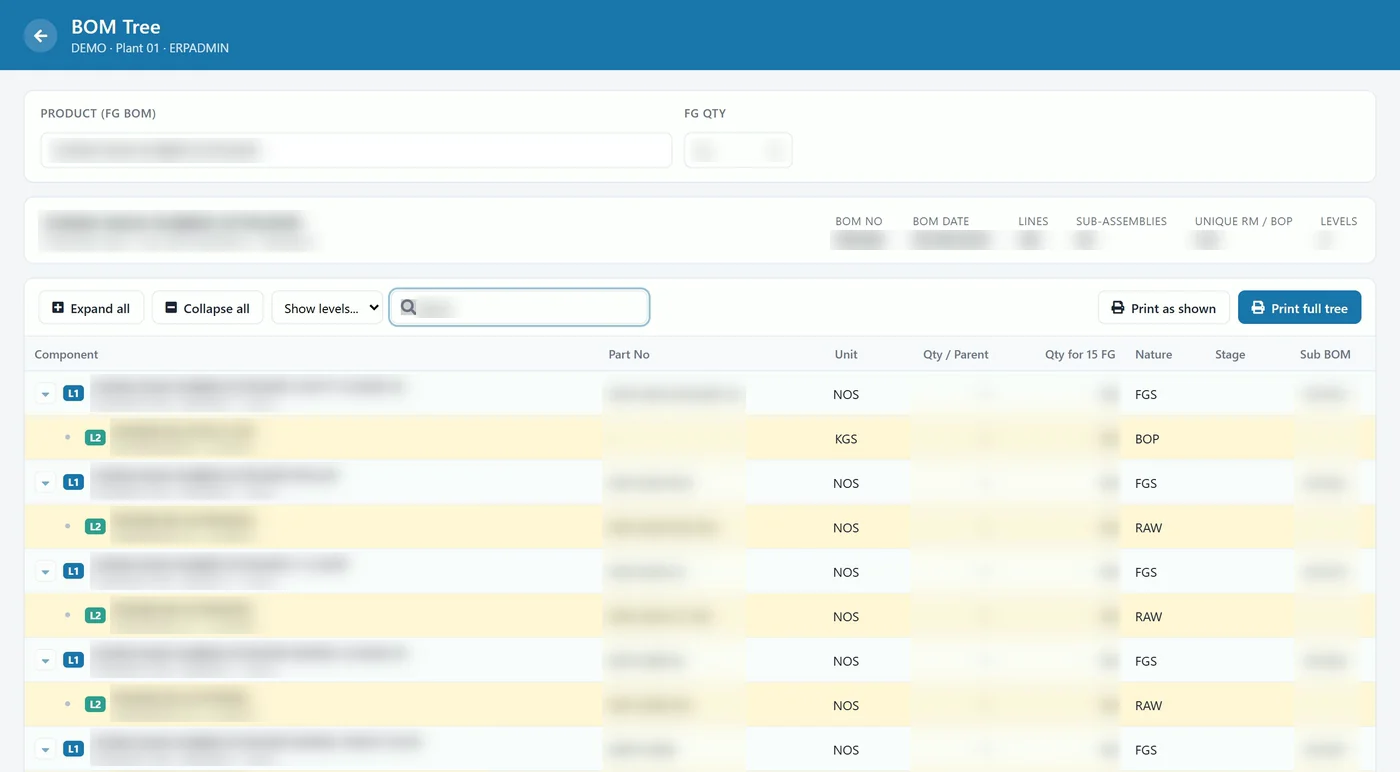
A summary strip at the top shows the BOM number and date, number of lines, number of sub-assemblies, number of unique raw-material and bought-out (BOP) items, and the depth of the tree. In the tree, an arrow marks a sub-assembly that can be opened and a dot marks a leaf item. Each row carries a level badge (L1, L2, L3 and so on), each level in its own colour, and the sub-BOM number of any assembly that has its own BOM.
Step 3: Open as much as you need
Expand All opens every branch at once; Collapse All returns to level 1. “Show levels” opens the tree only up to level 2 or 3 for a quick overview. Deeper levels are indented under their parents, so the structure stays readable even for large products.
Step 4: Find parts and plan quantity
Type a code, name or part number into Find Component, for example a material grade such as “EN-8”. Matching rows turn yellow and their parent branches open automatically, so you can see every place that part is used in the product. Change the FG quantity and the requirement column updates for that build size.
Step 5: Print
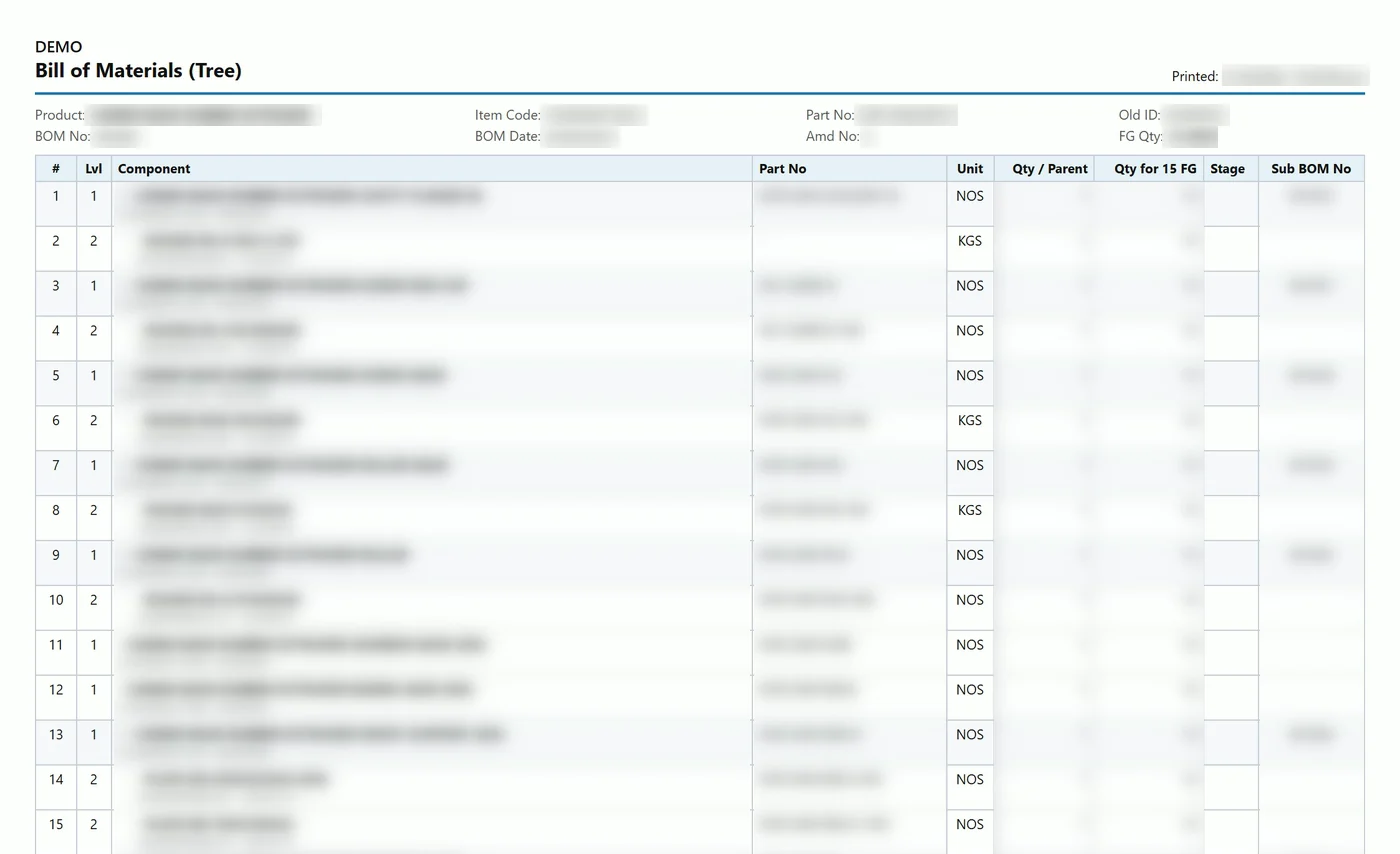
Two print buttons cover both needs. Print Full Tree prints every level; Print as Shown prints only the rows currently open. The A4 landscape print carries a header with company, product, codes, BOM number and date, amendment and FG quantity, and each line shows its level, indentation and sub-BOM number.
Worked example: how quantities multiply
Tejaxo Manufacturing makes Machine A (Product A). Each machine uses 4 C-clamps; each C-clamp uses 2 pins and 1 clamp body; each pin is machined from 0.25 kg of EN-8 round bar. The planner enters an FG quantity of 15.
| Component | Level | Line qty (per parent) | Qty per FG | Qty for 15 FG |
|---|---|---|---|---|
| C-clamp | L1 | 4 per machine | 4 | 60 |
| Pin | L2 | 2 per C-clamp | 4 × 2 = 8 | 120 |
| EN-8 round bar | L3 | 0.25 kg per pin | 8 × 0.25 = 2.0 kg | 30.0 kg |
| Clamp body | L2 | 1 per C-clamp | 4 × 1 = 4 | 60 |
Looking only at the top-level BOM, the planner sees “4 C-clamps” and nothing about bar stock. The tree shows immediately that a build of 15 machines needs 30 kg of EN-8 bar and 120 pins, which is the number the purchase and machine shop teams actually need.
Where the BOM Tree helps in daily work
- Planning: check the full requirement of a build before releasing work orders. In Tejaxo ERP, releasing a work order also explodes the BOM to all levels and creates the raw-material pick list, so the tree and the shop floor use the same structure.
- Purchase: see every bought-out and raw-material item under a product, with quantities for the planned build.
- Stores: issue against the BOM with confidence; the production controls refuse over-issue against the BOM.
- Design and engineering: review a product’s structure, check sub-BOM numbers and print it for a design review or a customer discussion.
- Sales: answer “what goes into this product?” without asking the planning team.
The BOM Tree is part of production planning in Tejaxo ERP, alongside the master production schedule, work orders and job cards. Stock for every level is managed in inventory management.
Common BOM mistakes and how the tree exposes them
- Missing sub-BOM: a component that should be a sub-assembly shows as a leaf (a dot instead of an arrow), which tells you its BOM has not been made.
- Duplicate BOMs: if a product has two BOMs, the tree uses the latest, so an outdated BOM does not silently drive requirements.
- Circular references: a BOM that loops back to its own parent stops the branch, making the error visible instead of hanging the screen.
- Wrong units at depth: because quantities are multiplied down, an unrealistic requirement for a deep part (for example kilograms of bar per machine) stands out at once.
Who this is for
The BOM Tree is most useful for manufacturers with deep product structures: special-purpose machinery, equipment makers, auto-component assemblies and fabricated products. See our pages for the machinery and equipment industry and the automobile industry. Manufacturers in the engineering clusters east of Delhi can also read about manufacturing ERP in Greater Noida.
How Tejaxo implements this
The BOM Tree is enabled with a one-time database and menu update, after which users are given rights to it. During implementation, we start with a discovery session on how your products are structured, upload your items and BOMs during a pilot on your own data, review the trees of your key products with your planning team, and then go live with training. Support after go-live is provided by the same team.
See your product as a tree
Share the BOM of one of your products, and we will show it as a multi-level tree in Tejaxo ERP, with requirements for your typical build size. Book a free demo or WhatsApp us at +91 96717 27474.
Frequently asked questions
What is a multi-level BOM?
A multi-level bill of materials lists a finished product’s components, and for every component that is itself made in-house, its own components, level after level down to raw material and bought-out parts.
Do I need to enter BOMs again to use the BOM Tree?
No. The BOM Tree is built from your existing finished-goods BOMs in Tejaxo ERP. Any component that has its own FG BOM automatically becomes a branch.
How are quantities calculated at lower levels?
Quantities multiply down the tree: the quantity per finished good is the parent quantity multiplied by the line quantity. If you enter a planned FG quantity, every level scales to it.
Can I find where a component sits in a product’s BOM?
Yes. Type a code, name or part number in Find Component; every matching row in that product’s tree is highlighted and its parent branches open, so you see each place the part is used in that product.
What happens if a BOM refers back to itself?
The tree stops at a BOM that loops back instead of running endlessly, and if a product has two BOMs, the latest one is used.
Can the BOM tree be printed?
Yes. Print Full Tree prints every level, and Print as Shown prints only the rows you have opened, both on A4 landscape with a header showing the product, BOM number, date, amendment and FG quantity.