
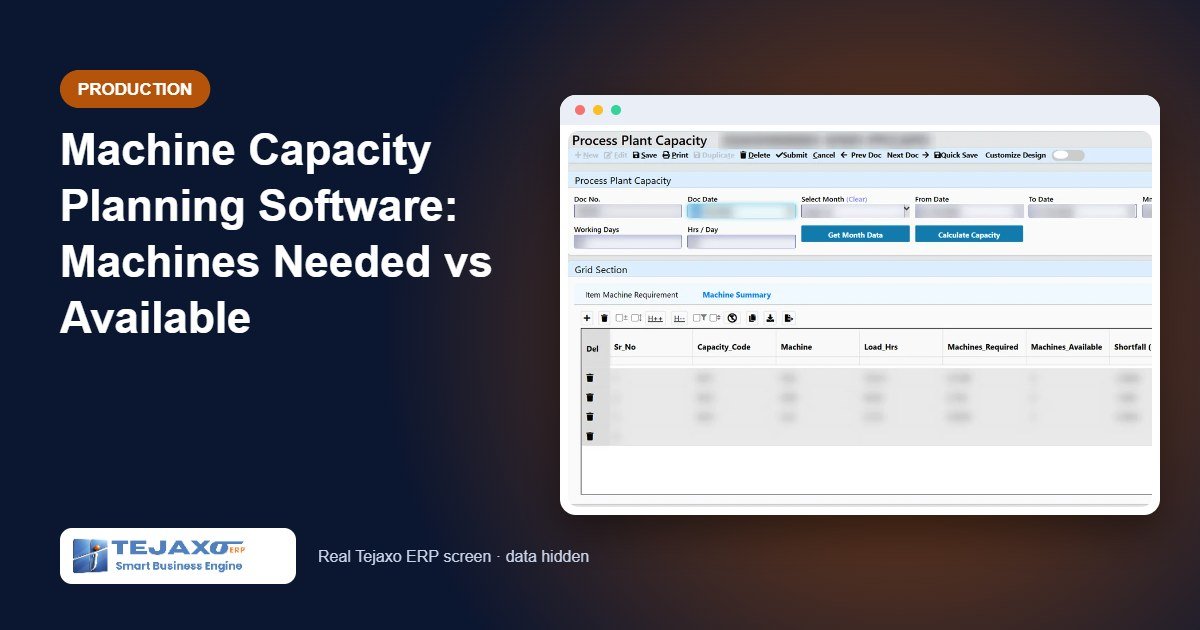
Every month the same question comes up in the planning meeting: can our machines actually produce what sales has booked? Most plants answer it with a spreadsheet that one planner maintains. It works until that planner is on leave, until cycle times change, or until someone forgets that half the order is already lying in the finished-goods store. Good machine capacity planning software takes that sheet out of a personal file and puts it inside the ERP, on live work orders and stock.
The answer the plant head needs is simple: for each machine type, how many machines does this month need, how many do we have, and are we short or spare? This article explains how Tejaxo ERP calculates exactly that, with a worked example you can check on a calculator.
Why capacity planning goes wrong in a spreadsheet
A capacity sheet is only as good as the numbers typed into it. In practice we see the same problems in plant after plant:
- Demand is copied by hand. Work order quantities are re-typed from the ERP into Excel, so the sheet is out of date the day after it is made.
- Finished stock is ignored. If 1,500 pieces are already in the FG store against a work order, those pieces do not need machine time, but the sheet still loads them.
- Cycle times live in someone’s head. When an item moves from one machine type to another, the sheet is not updated.
- Machine counts are wrong. A machine that is under breakdown or used only for trials is still counted as available.
The result is either overtime that nobody planned for or idle machines that nobody noticed. Both cost money. Capacity planning inside the ERP fixes the root cause: every input comes from a master or a transaction that is already maintained for other reasons.
Five documents, one answer
Plant capacity planning in Tejaxo ERP is built from five documents under Production Control. Three are one-time setups, one is your daily work, and one is the monthly calculation.
1. Machine Master PPC (one-time)
Every machine of the plant is entered once, with its make, section and costing details (run and overhead cost, operators, helpers). The system gives each machine a code on save, such as PMC000001. A machine name can exist only once per plant, so there are no duplicates.
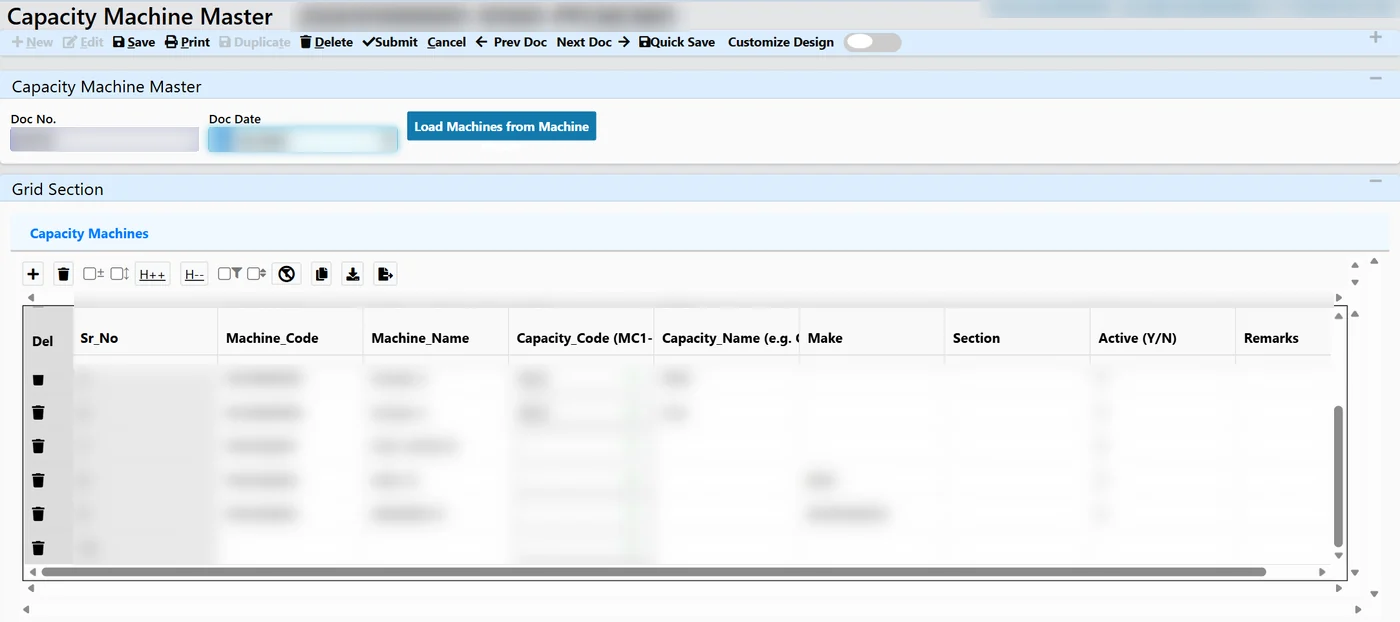
2. Capacity Machine Master (one-time)
Click Load Machines from Machine Master and every machine not yet loaded is copied in. You then give each machine a capacity code from MC1 to MC20 and a type name, for example MC1 = CNC, MC2 = VMC. One code keeps one name in every document, so MC1 cannot be CNC in one row and VMC in another. A machine that should not be planned is simply left without a code: it is saved as not linked and is not counted as available.
3. Product Machine Linking (one-time, updated when routes change)
For every item that is produced, the planner enters the cycle time in seconds per piece on each machine type. Item name, code, part number, rate and customer fill in from the Item Master. The columns are captioned from the Capacity Machine Master, so only machine types that actually exist appear on screen. Leave 0 where the item does not run on that type. Cycle times cannot be negative, and an item can be linked in only one document per plant.
4. Production Work Order (daily, nothing new to enter)
This is the demand. Planners keep booking work orders against sales orders exactly as before. All work order lines dated inside the capacity month are counted, except cancelled lines. To see how work orders are created from sales orders and the master production schedule, read our page on production planning software.
5. Process Plant Capacity (monthly)
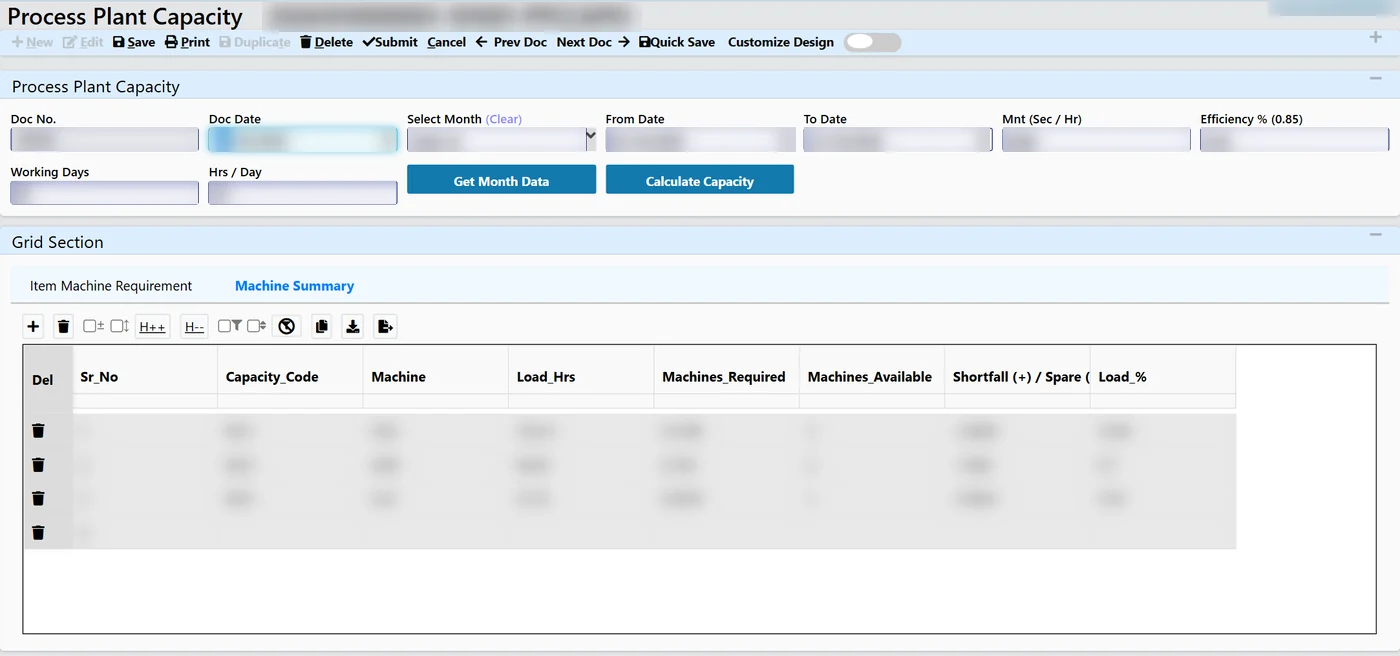
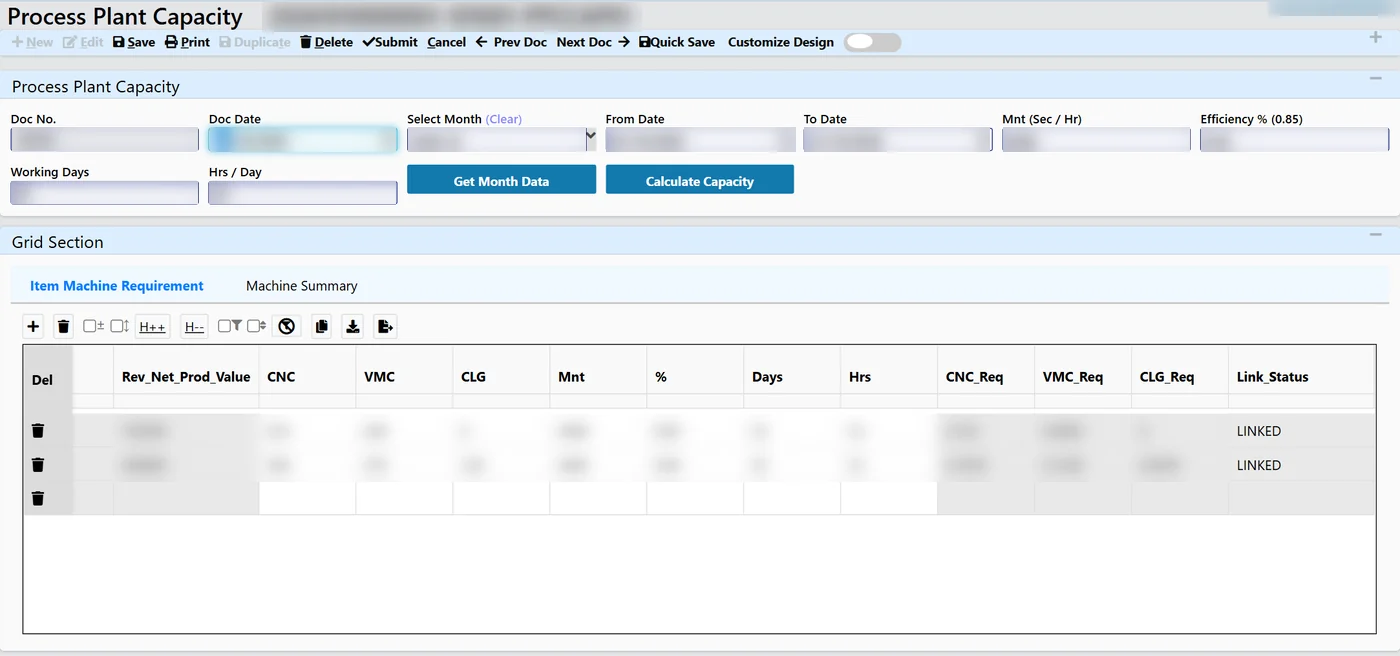
Select the month, click Get Month Data, then Calculate Capacity. The screen pulls items from the month’s work orders, their cycle times from the linking document and the finished-goods stock, and fills in machines required per item and a machine summary per type. Saving the document always recalculates the lines and the summary, so a saved plan can never show stale figures.
The formula, line by line
The calculation is deliberately the same formula planners already use in their sheets, so the result can be checked by hand.
Quantity still to be produced (Rev Net Prod) = WO Qty – FG against WO + Add – Less, where FG against WO is the smaller of the finished-goods stock and the work order quantity. FG stock is taken up to the day before the plan’s From Date. Add and Less are manual corrections for known changes, just like the ADD / LESS columns in a planning sheet.
Seconds available per machine = Mnt x Efficiency x Days x Hours. With the default values of 3,600 seconds per hour, 0.85 efficiency, 25 days and 23 hours, one machine offers 1,759,500 productive seconds in the month.
Machines required = Rev Net Prod x cycle seconds / seconds available per machine. Adding up a machine-type column over all items gives the number of machines of that type the month needs.
Finally, Shortfall = Required – Available (a positive figure means more machines or more shifts are needed) and Load % = Required / Available x 100.
Worked example with sample numbers
Tejaxo Manufacturing has 3 CNC machines, 2 VMC machines and 1 grinding machine in Plant 1. This month’s work orders cover three items. Product B already has 500 pieces in the FG store, and the planner adds 500 pieces of Product C for an expected schedule increase.
| Item | WO Qty | FG against WO | Add | Rev Net Prod | CNC sec/pc | VMC sec/pc | Grinding sec/pc |
|---|---|---|---|---|---|---|---|
| Product A | 12,000 | 1,500 | 0 | 10,500 | 240 | 90 | 0 |
| Product B | 8,000 | 500 | 0 | 7,500 | 180 | 150 | 60 |
| Product C | 5,000 | 0 | 500 | 5,500 | 300 | 0 | 120 |
CNC seconds needed = 10,500 x 240 + 7,500 x 180 + 5,500 x 300 = 5,520,000. Divided by 1,759,500 seconds per machine, the month needs 3.14 CNC machines. VMC needs 2,070,000 seconds, or 1.18 machines. Grinding needs 1,110,000 seconds, or 0.63 machines.
| Machine type | Required | Available | Shortfall (+) / Spare (-) | Load % |
|---|---|---|---|---|
| CNC | 3.14 | 3 | +0.14 | 104.6% |
| VMC | 1.18 | 2 | -0.82 | 58.8% |
| Grinding | 0.63 | 1 | -0.37 | 63.1% |
The reading is immediate. CNC is overloaded by about 5%, so the plant needs extra hours on CNC, a Sunday shift, or a decision to move part of the load. VMC has spare capacity, which may be a reason to check whether some operations can be shifted, or to accept more VMC-heavy orders. Without the FG stock deduction, Product A alone would have added 1,500 pieces of CNC load that does not exist.
Modelling what-if scenarios
The working-time values are copied to every line as defaults but stay editable per line. That makes simple what-if questions easy to answer:
- Different shift pattern for one item: change the days or hours on that line only, then click Calculate Capacity again.
- Full month instead of the rest of the month: by default the From Date is today for the current month. Set it to the 1st before clicking Get Month Data to plan the whole month.
- Expected schedule changes: use Add or Less on an item instead of creating dummy work orders.
- Lower efficiency on an older line: reduce efficiency on the lines that run there and see how the load changes.
Each line also shows a link status. NOT LINKED means the item has work orders but no cycle times yet, which is a prompt to complete the Product Machine Linking rather than a silent gap in the plan.
Rules that keep the plan honest
Several common mistakes are stopped by the screens themselves:
- A capacity code must be between MC1 and MC20; a machine without a code is not counted.
- One code carries one type name everywhere, and renaming a type in the master renames the column on every screen.
- A machine name is entered once in Machine Master PPC, and a machine code once in the Capacity Machine Master.
- An item can appear in only one Product Machine Linking document per plant, so there are never two competing cycle times.
- Cycle seconds must be 0 or more.
- Saving the monthly document always recalculates, so the printed summary matches the lines.
Because the capacity screens read the same masters and work orders as the rest of the ERP, the figures also line up with what the management dashboards and reports show for production and orders.
Who this is for
Plant capacity planning is most useful for discrete manufacturers where several items compete for the same group of machines: machine shops, auto-component plants, forging and machining units, and makers of engineered products. If you run a plant in an industrial belt such as IMT Manesar or Faridabad, this is the kind of monthly question that decides whether you accept a new schedule from an OEM. See how Tejaxo ERP supports the automobile and auto-component industry and the machinery and equipment industry.
The setup scales from a handful of machines to up to 20 machine types. Smaller units can start with only their bottleneck machine types and add the rest later.
How Tejaxo implements this
We start with a discovery session with your planner to understand how capacity is calculated today, usually from the existing sheet. We then run a pilot on your own data: your machine list, your capacity codes, your cycle times and a real month of work orders, so that the ERP result can be compared line by line with your sheet. After go-live and training for planners, the same Tejaxo team supports you. The administrator enables the screens with Update Database, and planners get rights on the Plant Capacity submenu and Machine Master PPC through user rights.
See your machine load on your own data
If capacity planning in your plant still depends on one person’s spreadsheet, it is worth seeing the same calculation on your own work orders. Explore Tejaxo ERP, then book a free demo or message us on WhatsApp at +91 96717 27474. We will show you machines required versus available for one of your real months.
Frequently asked questions
What is machine capacity planning software?
It calculates how many machines of each type your confirmed orders need in a period and compares that with the machines you actually have. In Tejaxo ERP the result is shown as machines required, machines available, shortfall or spare, and load % for each machine type.
Which data does the capacity calculation use?
Work order quantities for the month, finished-goods stock against those work orders, the cycle time in seconds per piece for each item on each machine type, and the working time settings (seconds per hour, efficiency, days and hours).
Can I plan with a different shift pattern for one item?
Yes. Efficiency, days and hours are copied to every line as defaults, and each line can be changed to model a special shift pattern. Click Calculate Capacity again after the change.
How many machine types can be planned?
Up to 20 machine types, coded MC1 to MC20. Each code carries one type name, such as CNC or VMC, which appears as the column caption on every capacity screen.
What happens to a machine that should not be counted?
Leave its capacity code empty in the Capacity Machine Master. The machine is saved as not linked and is left out of the available count.
Is the plant capacity screen part of the production module?
Yes. It sits under Production Control as a Plant Capacity submenu next to PPC, and it reads the same Production Work Orders that planners already book against sales orders.